Project templates and recurring tasks in Microsoft Teams
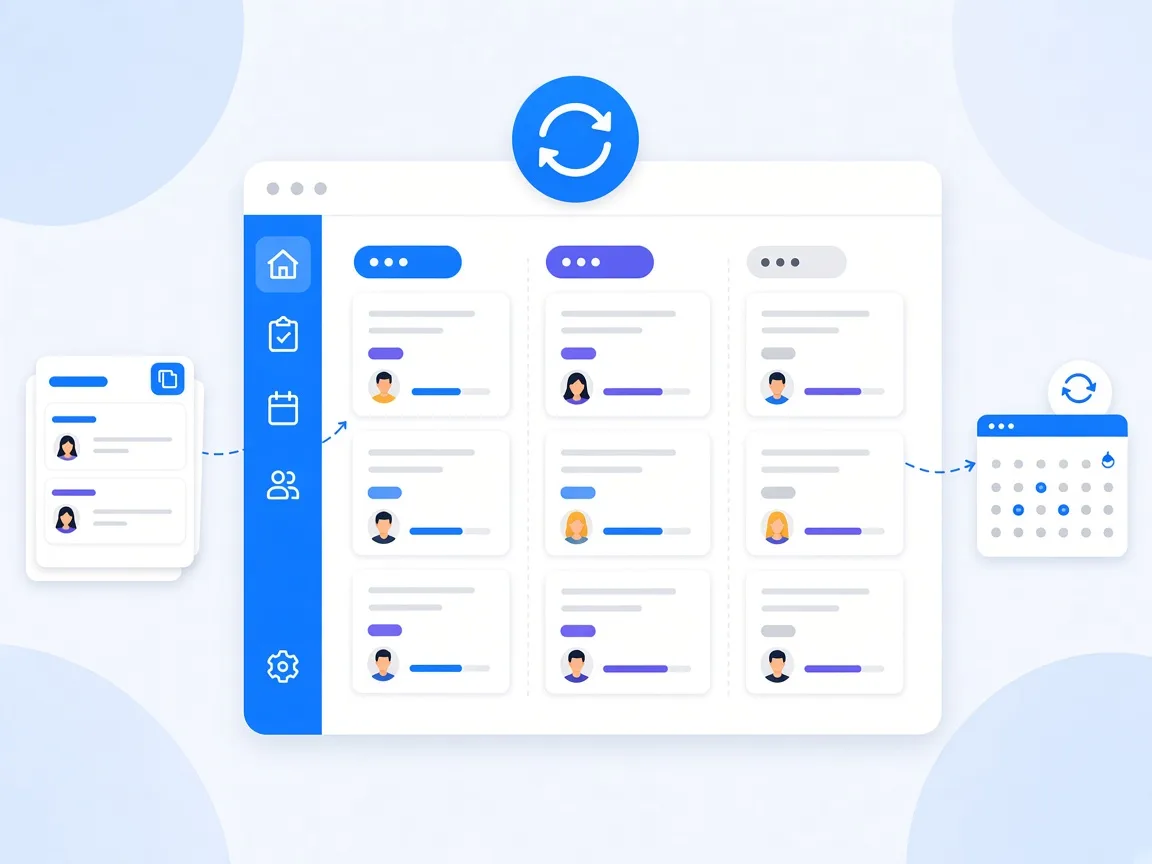
You simplify standard processes in Microsoft Teams with two tools: project templates for initiatives that always run the same way, and recurring tasks for routines that come up on a fixed schedule. You set up a template once with all sections and tasks and start every new onboarding, campaign or rollout from it in a few clicks. timeghost Project Board creates a recurring task automatically, for example the weekly report every Friday. This guide shows you both, step by step.
Why templates and routines pay off
Almost every team has processes that repeat. New colleagues need accounts, hardware and onboarding. Every campaign goes through briefing, draft, approval and publishing. The invoicing run is due every month. If you plan these processes from memory each time, you forget steps and lose time.
Templates capture your know-how: whatever was missing in the last onboarding, you add to the template once, and next time it's there. Recurring tasks take the creation off your hands, so routines don't depend on someone remembering them.
Project template or recurring task?
- Project template: when an entire initiative with several tasks and sections repeats, but not on a fixed schedule. Examples: onboarding, campaign planning, IT rollout, client project.
- Recurring task: when a single task comes up regularly. Examples: weekly report, monthly invoicing, backup check, quarterly review.
You can combine both: in a project created from a template, you add recurring tasks as well, for example a weekly check-in during onboarding.
Step by step: create a project template
Administrators and managers manage templates on the Templates page in the Management area of the sidebar. There are two ways:
- New template: On the Templates page, create an empty template via New Template. You edit it like a project, with sections and tasks.
- From a project: If a project has proven itself, turn it into a template via Save as template in the project menu.
The second way is often the better one: you take a project that actually ran, remove project-specific details and end up with a template that is proven in practice.
How to use the template:
- Open Projects and click New project.
- Pick the template you want in the Template field. The title is prefilled with its name.
- Adjust the title, for example Onboarding Anna Berger, and click Create.
The new project starts with all sections and tasks of the template.
Practical example: an onboarding template
An onboarding template could be structured like this:
- Section Before day one: file the employment contract, order hardware, request accounts, prepare a welcome email
- Section First week: welcome in the team, introduction to the key tools, meetings with contacts
- Section First month: training on core tasks, feedback conversation
- Section Wrap-up: prepare the end-of-probation review
For HR or salary topics, exclusive access on the Premium plan is worth it: only selected people can then see such tasks.
Step by step: create a recurring task
- Open the task and choose Make recurring in its menu.
- Under Repeat, set how often the task is created: every so many days, weeks or months.
- For weekly repeats, choose one or more weekdays under Repeat on. For monthly repeats, choose a fixed day of the month or, for example, the first or last Monday.
- Under Ends, decide whether the series ends Never, On a date or After a set number of occurrences.
- Click Save.
A preview in the dialog continuously shows you what will happen, for example: This task will be created every week on Friday.
Keep your series under control
As soon as a project has a recurring task, the Recurring tasks entry appears in the project menu. There you see all series of the project with their status and Next run. You edit a series, delete it or Pause it, for example during the summer break, and later Resume it.
Templates and recurring tasks are already included in the free plan. Basic has higher limits, and on Premium both are unlimited. The exact numbers are in the help center under Templates and recurring tasks and in the pricing overview.
Common mistakes and how to avoid them
- Overly detailed templates: A template with 80 tasks is off-putting. Keep it lean enough to fit most cases and add details in the project.
- Not maintaining templates: Plan a look at your templates once or twice a year. Whatever gets deleted or added regularly needs adjusting.
- No assignee in the routine: A recurring task without an assignee is created reliably and ignored just as reliably.
- Forgotten series: When a process changes, pause or end the related series instead of letting it run.
For operations teams with many routines, the Operations teams page shows how daily work and projects come together on the same board. The guide Assign tasks in your team explains how to assign tasks cleanly afterwards.
Conclusion: set up once, use again and again
Project templates and recurring tasks save time exactly where teams lose it most often: in processes that repeat. A well-maintained template captures your process know-how, and a series makes sure routines aren't forgotten. With timeghost Project Board you set up both right inside Microsoft Teams, with a preview, a pause function and templates already on the free plan. See the plans in the pricing overview, or try Project Board for free in your Microsoft Teams.
Sources and further reading
This article is for general information only. The content was created with the help of AI and reviewed by our editors. As of: 2026-10-16.
Frequently asked questions
What is the difference between a project template and a recurring task?
A project template is a reusable project structure with sections and tasks from which you create a new project when needed, for example for every onboarding. A recurring task is a single task that timeghost Project Board creates automatically on a fixed schedule, for example the weekly report every Friday.
Who can create project templates?
In timeghost Project Board, administrators and managers manage templates on the Templates page in the Management area. Everyone who may create projects can pick a template when creating a project.
Can I pause a recurring task?
Yes. Under Recurring tasks in the project menu, you see all series of the project with their status and next run. There you edit, delete, pause and resume series.
Are templates and recurring tasks included in the free plan?
Yes. The free plan of timeghost Project Board already includes reusable templates and recurring tasks. Basic has higher limits, and on Premium both are unlimited. Details are in the pricing overview.
About the Author

timeghost Team
Editorial Team
The timeghost team builds Project Board and writes about project and task management in Microsoft Teams.
Share article