Projects & tasks
Templates, recurring tasks and reminders
Templates help you start new projects faster, and recurring tasks let you map routines. This page shows how both work and what each plan includes.
Project templates
A template is a reusable project structure, for example for campaign planning, IT rollouts or onboarding new colleagues. You edit it like a project, with sections and tasks. Every new project based on the template starts with this structure.
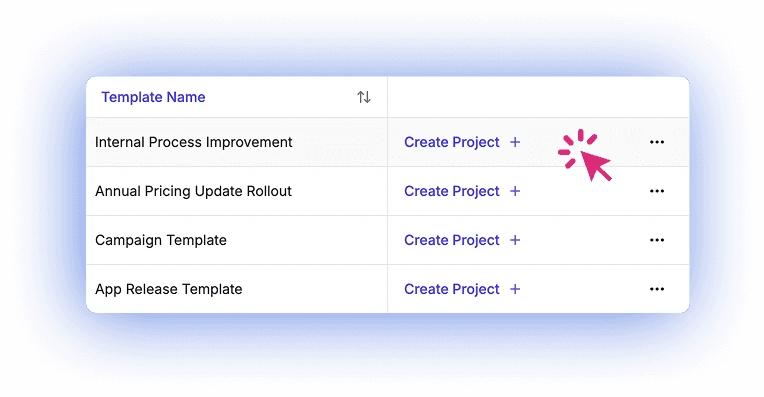
Create a template
Administrators and managers manage templates on the Templates page in the Management area of the sidebar. There are two ways:
- On the Templates page, create an empty template via New Template and build it up.
- Turn an existing project into a template via Save as template in the project menu.
The Templates page lists all templates with their owners and creation date. Use the search field to find a template by its title. Administrators and managers restore archived and deleted templates from the workspace archive and trash.
Create a project from a template
When you create a project, pick the Template you want in the New project dialog. The title is prefilled with the template name, and you can overwrite it. Learn more in Projects and collaboration.
Recurring tasks
Set up tasks that come up regularly once and let them be created automatically, for example a weekly report or a monthly invoice run.
- Open the task and choose Make recurring in its menu.
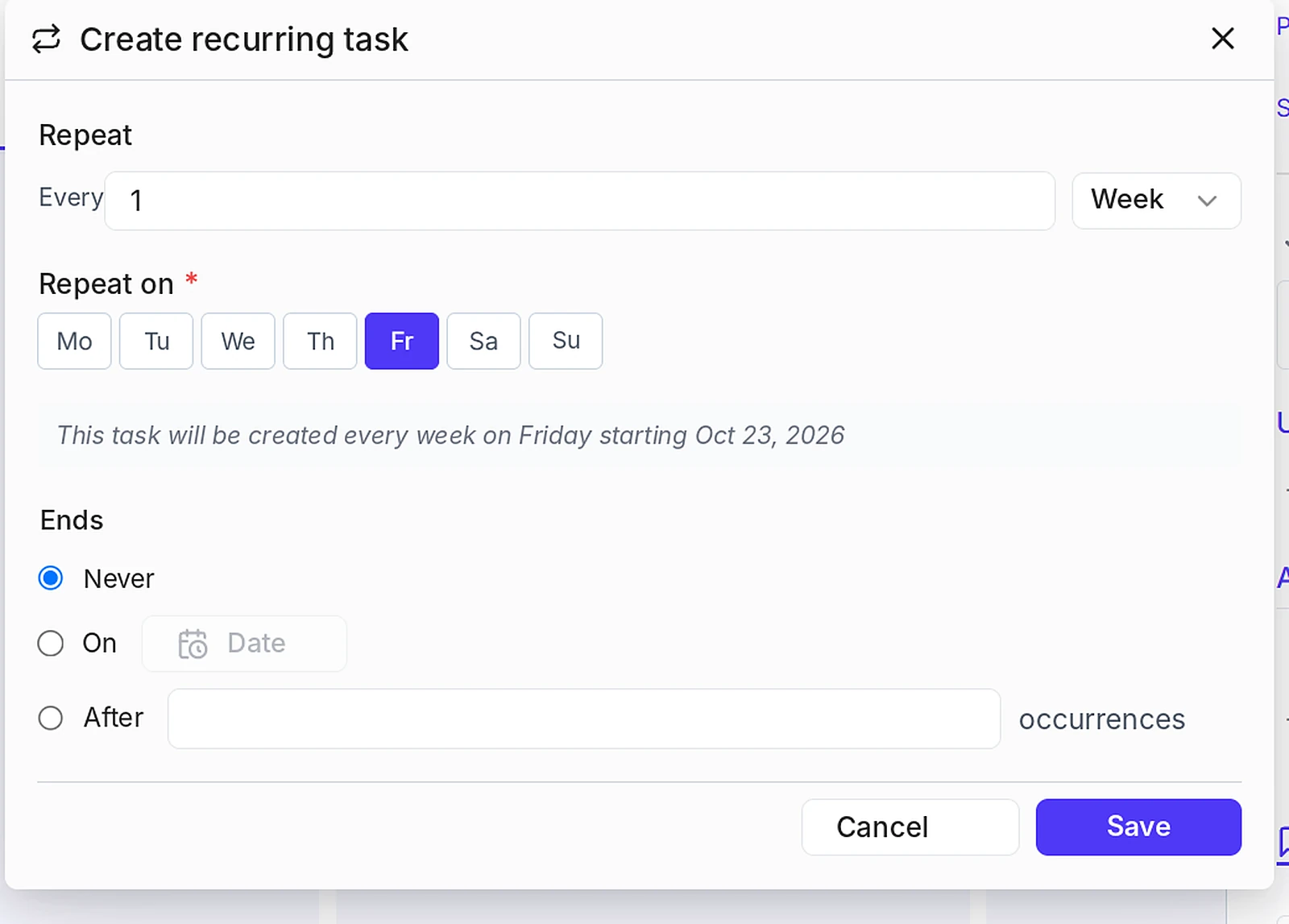
- Under Repeat, set how often the task is created: every so many days, weeks or months.
- For weekly repeats, choose one or more weekdays under Repeat on. For monthly repeats, choose a fixed day of the month or, for example, the first or last Monday.
- Under Ends, decide whether the series ends Never, On a date or After a set number of occurrences.
- Click Save.
The dialog shows a live preview, for example: This task will be created every week on Friday.
Manage series
As soon as a project has a recurring task, the project menu shows the Recurring tasks entry. There you see all series of the project with their status and Next run. You can edit or delete a series, Pause it and Resume it later.
Limits per plan
| Free | Basic | Premium | |
|---|---|---|---|
| Reusable templates | 3 | up to 10 | unlimited |
| Recurring tasks | up to 3 | up to 10 | unlimited |
When you reach the limit, the Project Board lets you know. Templates that your plan no longer covers are kept, but they are locked when you create a project.
Task reminders
Task reminders are included from the Basic plan. Task notifications and comments are already part of the Free plan. You choose which notifications you get in your personal settings, see Dashboard, search and notifications.
What else the plans include
- Free: unlimited projects and team members, up to 50 tasks per project, task notifications and comments
- Basic: everything in Free, plus file uploads up to 10 MB, archive and trash, project tabs and activity logs
- Premium: everything in Basic, plus file uploads up to 250 MB, advanced permissions and role management, tasks with exclusive access, API access and priority support
Prices and all details are listed in the pricing overview.