How to set up a Kanban board in Microsoft Teams: step-by-step guide
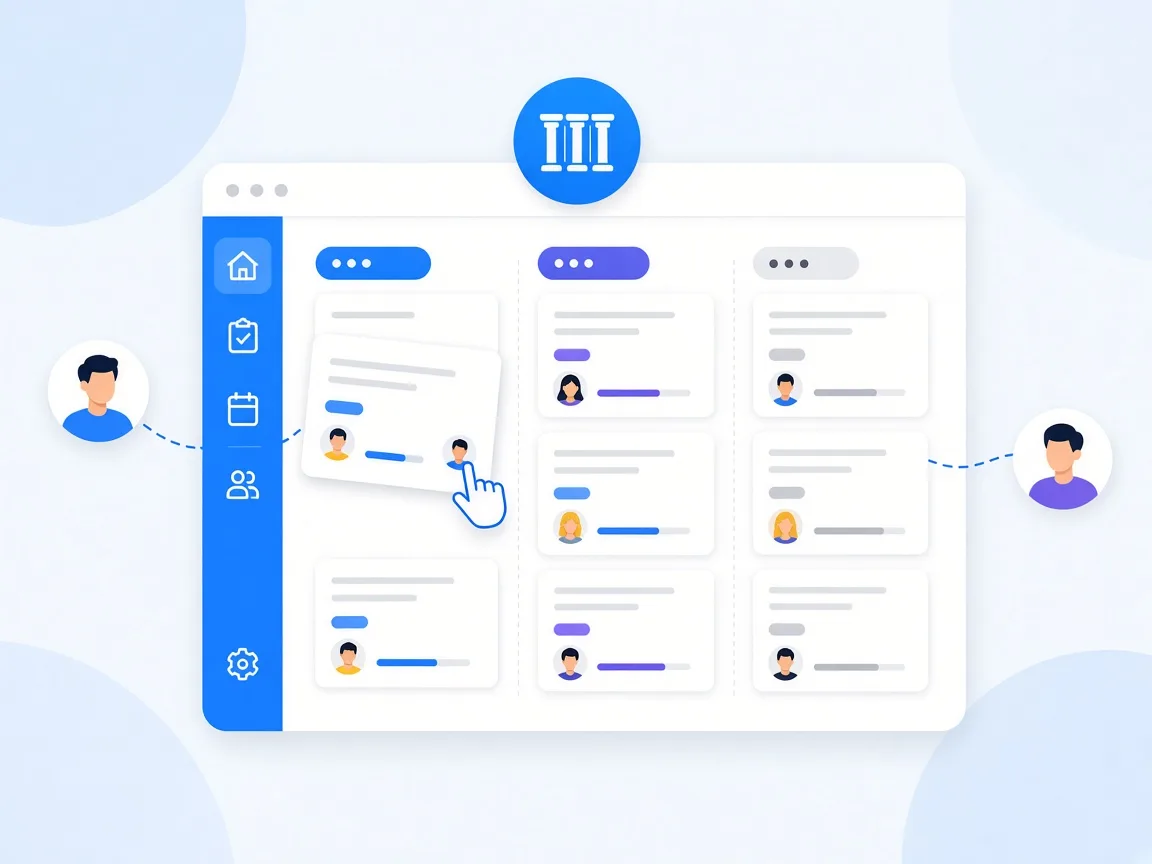
The fastest way to set up a Kanban board in Microsoft Teams is a project management app that runs right inside Teams: add the app from the Teams Store, sign in with your Microsoft 365 account, create a project, choose your columns and invite your team. With timeghost Project Board this usually takes less than an hour, including your first tasks. This guide walks you through every step and explains how to build the board so your team still enjoys working with it three months from now.
Why Kanban right inside Microsoft Teams?
Kanban makes work visible. Every task is a card, every column a step in the process. Anyone who looks at the board sees at once what is open, what is in progress and where things are stuck. That replaces a lot of status emails and quick questions in chat.
If the board lives right inside Microsoft Teams, you also skip switching to yet another tool. Your team discusses tasks where it already chats and meets. Notifications arrive in Teams, and a link to a task can be pasted into any chat.
What Microsoft Teams offers out of the box
Microsoft Planner adds a board view to Teams in which you sort tasks into buckets. For simple task lists, that is often enough. In day-to-day work, teams run into typical limits, though:
- Access per plan only: According to Microsoft, access applies to the entire plan. All members see and edit all tasks.
- No recovery: According to Microsoft, deleted tasks in Planner cannot be recovered.
- Sub-projects as separate plans: If you want to split a project into phases or sub-projects, you create several plans.
Our comparison with Microsoft Planner and the guide Microsoft Planner alternative show exactly where the differences are.
Step by step: set up a Kanban board with Project Board
- Add the app: Add timeghost Project Board from the Microsoft Teams Store or open it in your browser.
- Sign in: You sign in via single sign-on with your organization's Microsoft 365 account (Microsoft Entra ID). You don't need an extra password.
- Pin it: Pin the app to the Teams sidebar. That way your board is one click away, even from meetings, chats and channels.
- Create a project: Open Projects, click New project, enter a title and click Create. For your very first project, you choose whether to work with status columns (Not started, In progress, Done) or with custom sections.
- Open the board view: Switch to the Board view below the project title. The button at the top right sets what the columns are made of.
- Create your first tasks: Click + New task below a column and enter a title. In the details, add assignees, dates, priority and labels.
- Invite your team: Use the profile pictures at the top right of the project to add colleagues and give them a role.
You will find a detailed guide with screenshots in the help center under Getting started.
Choosing columns: sections or fields?
Project Board offers two kinds of columns. You create Sections yourself, name and order them, for example Backlog, This week, In review and Done. Alternatively, the board builds the columns automatically from a field: Status, Priority, Assigned to or Labels. When you drag a card to another column, the field changes with it.
As a rule of thumb: start with status columns if your team is new to Kanban. Switch to custom sections once your process has fixed stages, for example draft, approval and publishing in marketing. Columns by Assigned to work well for weekly planning: you see at once who has how much on their plate.
Automate workflows with section rules
With custom sections, take a look at Section rules. In a section's menu you define what happens when a task is created in that section or moved there: Project Board automatically sets a status or assigns the task to a person.
An example: when a card lands in the In review section, it is automatically assigned to the team lead. Nobody has to remember to let them know, and the team lead gets a notification.
Views, filters and tabs for a better overview
A board with 80 cards quickly gets cluttered. Three features help:
- Filter: Show only the tasks you need right now, for example by assignee, label, priority or overdue tasks.
- Group: Split the board into rows as well, for example by priority. This gives you a kind of swimlane view.
- Saved views: Save a good combination of columns, grouping and filters, for example My open tasks. Each project can have up to 20 saved views.
As a project grows, structure it with tabs from the Basic plan: each tab holds its own sub-board with its own sections and tasks. If you prefer planning in tables or by date, switch to the List or the Calendar with month, week and day views at any time. Learn more in the help center under List, board and calendar.
Common setup mistakes and how to avoid them
- Too many columns: Ten columns look thorough but slow down every discussion. Start with three to five and only add more if tasks regularly get stuck at one point.
- Cards without assignees: A task without a person gets left behind. Regularly filter for unassigned tasks.
- Everything in one board: Keep independent initiatives in separate projects or tabs. One board per department with everything in it soon turns into an archive.
- Board and email side by side: If agreements keep happening by email, the board goes stale. Comment right on the task and mention colleagues with @. The guide Assign tasks in your team shows how this works day to day.
- No regular look at the board: A short weekly meeting in which you go through the board together keeps it up to date.
Conclusion: a Kanban board in Teams in one hour
Setting up a Kanban board in Microsoft Teams is not an IT project. Add the app, sign in with your Microsoft 365 account, choose your columns, create tasks and invite your team: that's all you need to get started. The real value comes afterwards, when you hold discussions right on the tasks and look at the board together regularly. timeghost Project Board brings board, list and calendar, section rules, saved views and notifications right into Teams, ISO 27001-konform and hosted in the Azure region Germany West Central (Frankfurt). See the plans in the pricing overview, or try Project Board for free in your Microsoft Teams.
Sources and further reading
- Microsoft Learn: Microsoft Teams documentation
- Microsoft Learn: Manage apps in Microsoft Teams
- Microsoft Learn: Security, privacy, and compliance in Microsoft Planner
- Microsoft Support: Delete a task or plan
This article is for general information only. The content was created with the help of AI and reviewed by our editors. As of: 2026-10-16.
Frequently asked questions
Does Microsoft Teams have a built-in Kanban board?
Microsoft Planner offers a board view with buckets in Teams. If you also need permissions per task, sub-boards via tabs, section rules or a trash, you add a dedicated project management app such as timeghost Project Board to Teams.
Which columns should a Kanban board have?
Three columns are enough to start: Not started, In progress and Done. Only when your team notices that tasks regularly get stuck at one point, for example approvals, is an extra column such as In review worth adding.
Can I use the Kanban board on mobile?
Yes. timeghost Project Board runs in the Microsoft Teams app, so you can use it on iOS and Android devices as well. You can also open it in the browser.
How much does a Kanban board in Microsoft Teams cost?
timeghost Project Board has a free plan with unlimited projects and team members and up to 50 tasks per project. The paid Basic and Premium plans are listed in the pricing overview.
About the Author

timeghost Team
Editorial Team
The timeghost team builds Project Board and writes about project and task management in Microsoft Teams.
Share article