Projects & tasks
List, board, calendar, timeline and Flow: the views in a project
You can open every project in five views: List, Board, Calendar, Timeline and Flow. Switch between them below the project title. You adjust filters, grouping and columns for each view and save them as your own view if you like.
Board
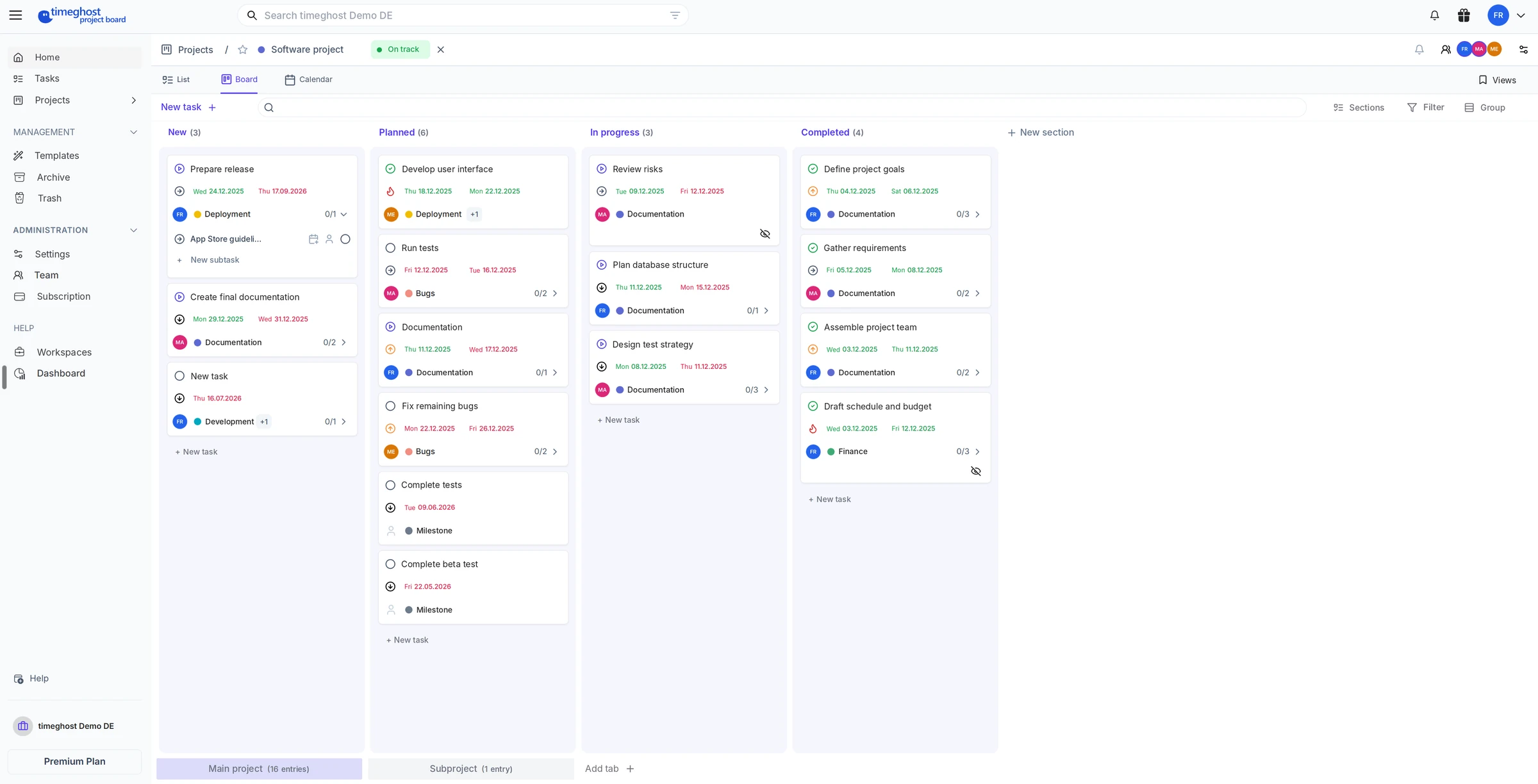
The board shows your tasks as cards in columns. Drag and drop moves tasks between columns.
You choose the columns with the button in the top right of the bar. It shows the current setting, for example Sections. The options are:
- Sections: your own columns that you create, name and sort yourself. + New section adds a column.
- Status, Priority, Assigned to or Labels: the board builds the columns from this field automatically. When you move a card, the field changes with it.
Section rules
Use a section's menu to set Section rules. When a task is created in that section or moved there, the Project Board automatically sets a status or assigns it to a person.
List
The list shows tasks as a table with columns for status, priority, labels, assignees and dates. Click a column header to sort. You create new tasks directly in the list. Select several tasks with the checkboxes to edit them together, see Tasks.
Calendar
The calendar shows your tasks on their dates, as a month, week or day. That way you plan your week without switching views.
Timeline
New in version 1.20.
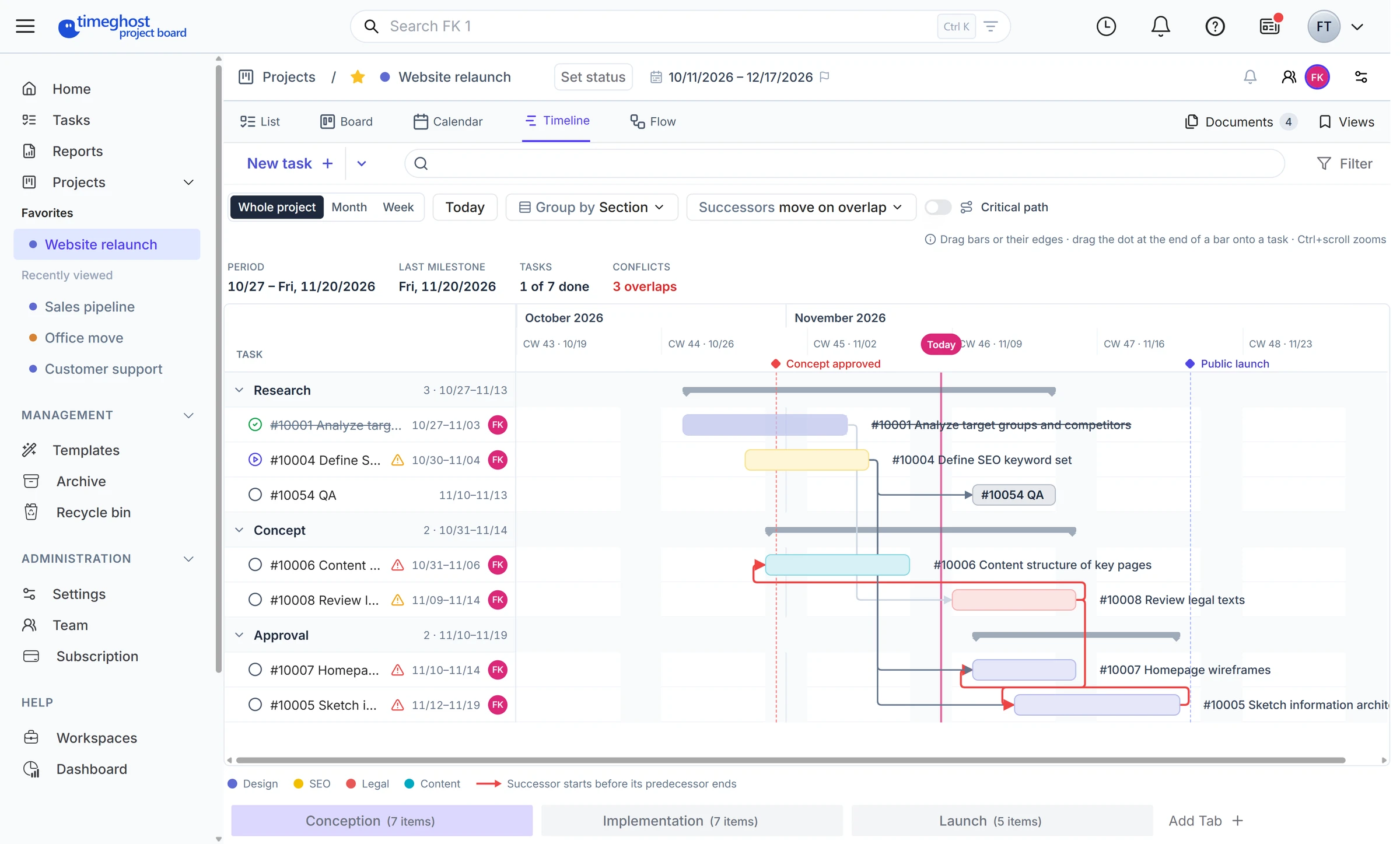
The timeline shows every task with a start and due date as a bar on a time axis. At the top you see the period, the last milestone, completed tasks and conflicts, with the milestones marked below.
- Move and resize: Drag a bar to move it, or one of its edges to change the duration.
- Period: Switch between Whole project, Month and Week. Today jumps to the current day, and Ctrl plus the mouse wheel zooms.
- Group: Arrange the bars by section, status, priority, assignee, label or milestone.
- Successors: Decide whether waiting tasks always move along when you move a bar, only on overlap, or not at all.
- Baseline: A baseline keeps the original plan so you can see where dates have slipped.
- Critical path: The switch highlights the chain of tasks that sets the project end. If one of them slips, the end moves too.
Arrows between tasks, and with them the critical path, come with the Basic plan, see Dependent tasks. On the Free plan you use the timeline without arrows.
Flow
New in version 1.20.
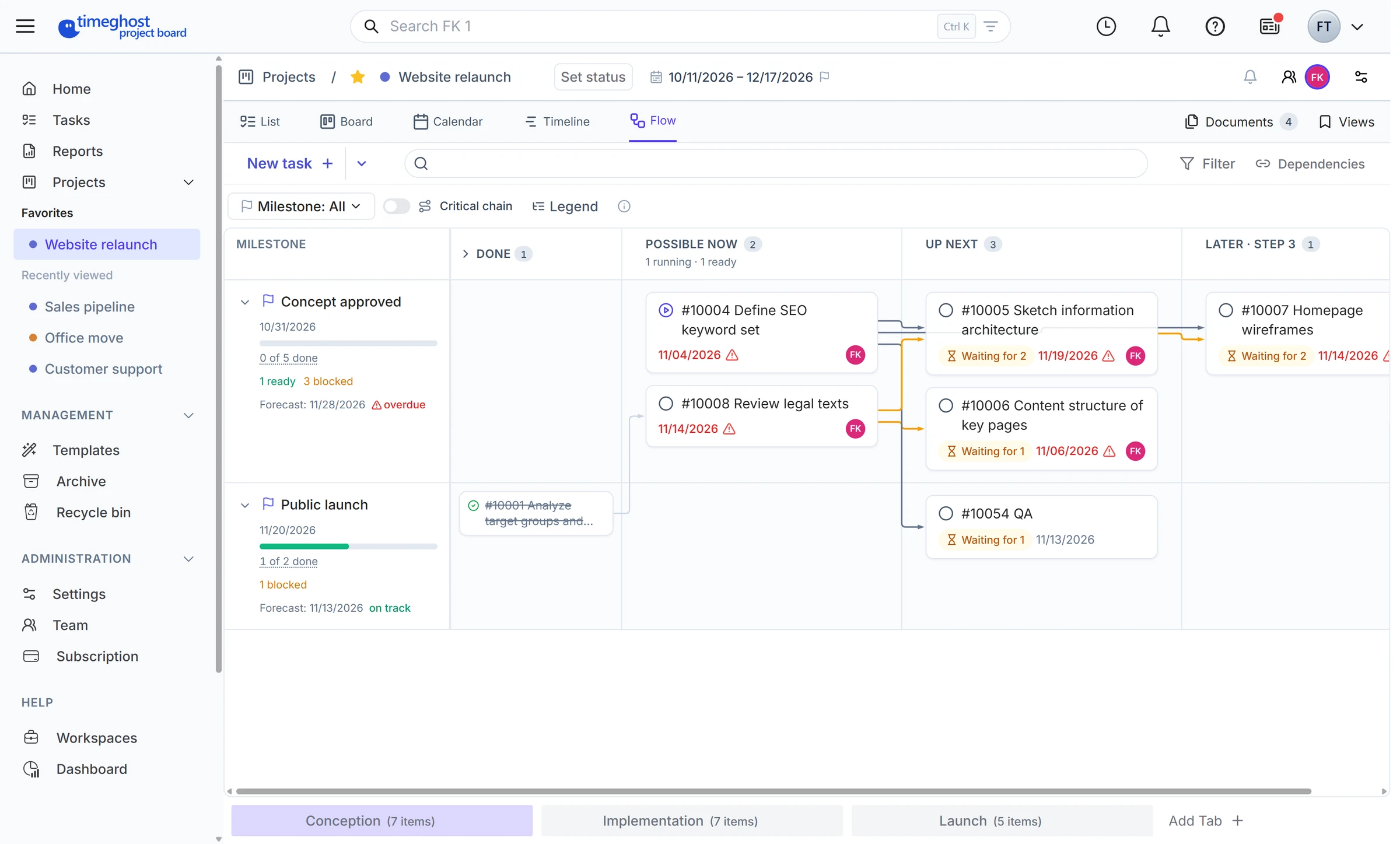
Flow shows what can start now. Each row belongs to a milestone, and the columns follow the order in which tasks wait on each other: Done, Possible now, Up next and the steps after that.
- The row header shows the milestone's due date and progress, how many tasks are ready or blocked, and a forecast of whether the milestone is on track or overdue.
- Drag a task into another row to move it to a different milestone.
- Milestone narrows Flow down to one milestone, so you see what is still missing before it.
- Critical chain highlights the chain of tasks that takes longest.
- Legend explains the colors, lines and symbols.
Dependent tasks
New in version 1.20. Basic plan and up.
Dependencies show which task is waiting on which predecessor. You connect tasks on the board, in the timeline or in Flow:
- Hover over the card or bar of the predecessor.
- Drag the connection point onto the task that should wait.
- An arrow shows the dependency. The second task now waits on the first.
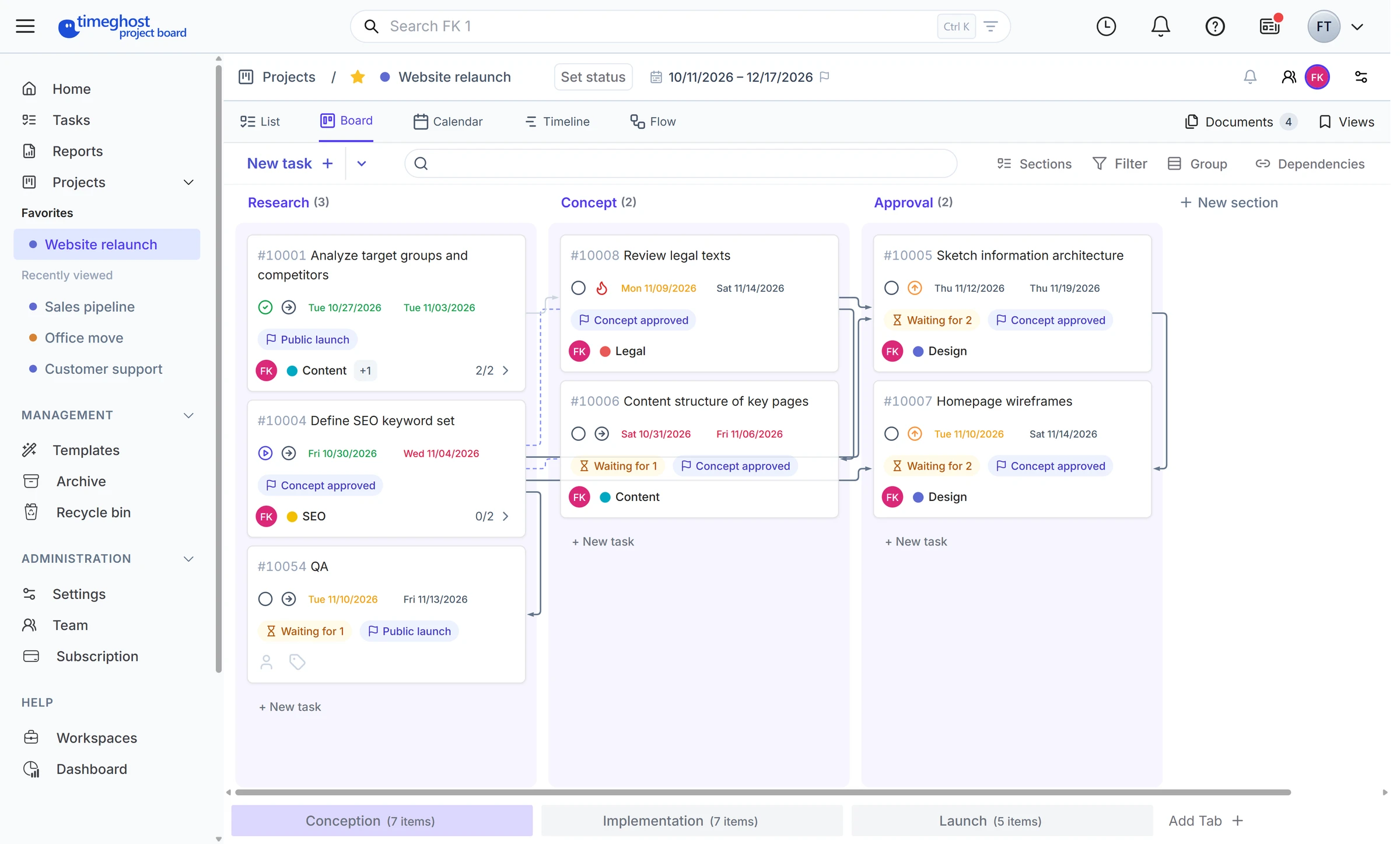
- Waiting for shows on every task whose predecessor is still open, with the number of open predecessors.
- Remind lets the owner of a predecessor know that you're waiting on it.
- Dependencies in the bar shows all lines, only those of the selected task, or none. Arrange automatically moves connected tasks to the top of their column.
- If a successor starts before its predecessor ends, the timeline marks the arrow red and counts the overlap as a conflict.
Group
Group additionally splits the list and the board into rows: by sections, priority, status, assignees or labels. No grouping turns it off again. The calendar has no grouping.
Filter
Filter shows only the tasks you need right now. You filter by status, priority, labels, assignees (including unassigned tasks), sections, overdue tasks, and start and due date. The number on the button shows how many filters are active. The magnifying glass next to New task searches task titles within the project.
Saved views
Save a good combination of view, columns, grouping and filters so you don't have to set it up again every time.
- Set up the view, columns, grouping and filters.
- Click Views (the bookmark) in the top right.
- Choose Save current view and enter a name, for example My open tasks.
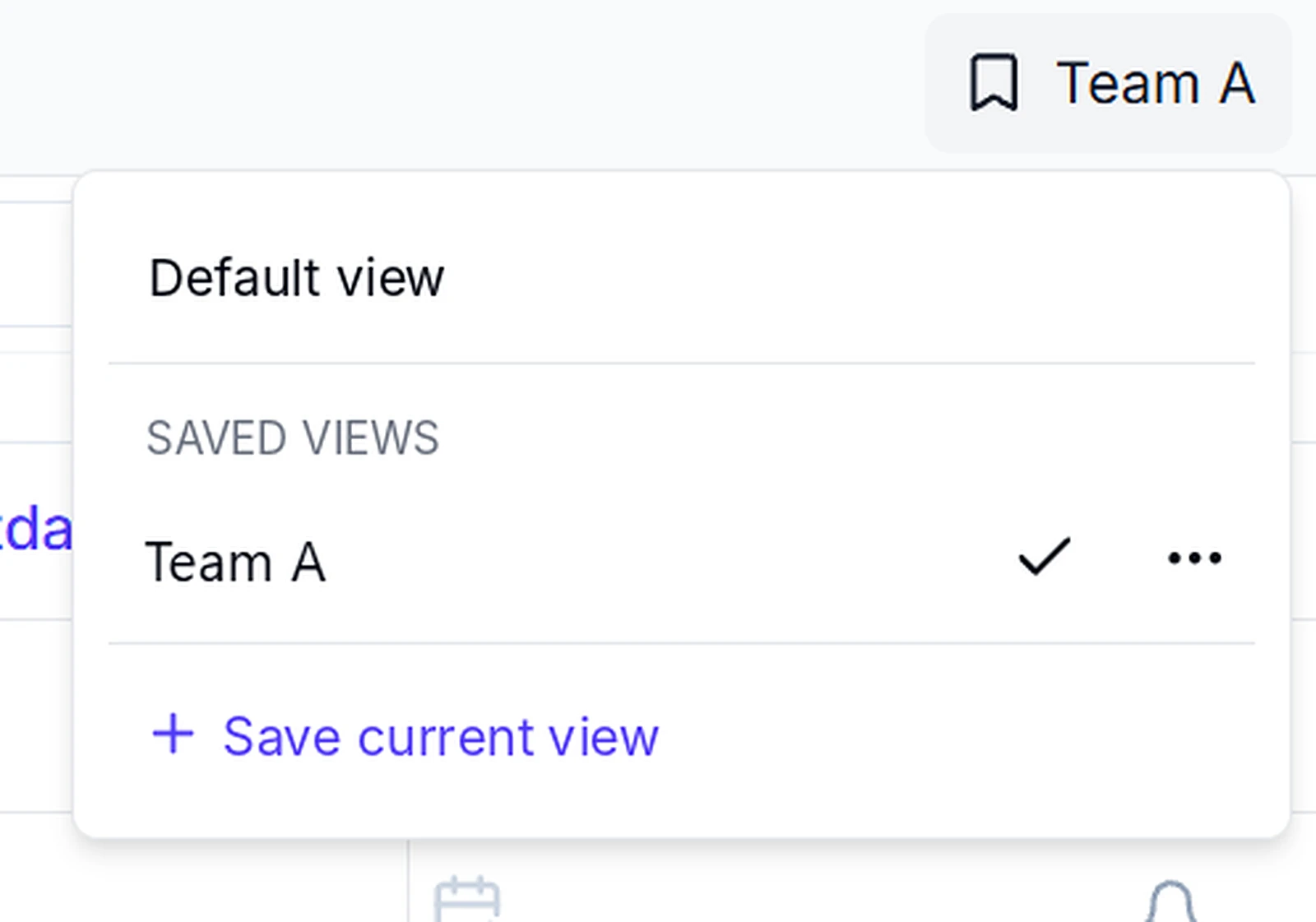
In the same menu you switch between the Default view and your saved views. The active view has a check mark, and each saved view shows the number of its tasks. While a saved view is active, the button shows its name. If you change something afterwards, Modified appears next to it. The three dots on a view let you rename it, update it with the current settings or delete it. Reset view restores the saved state. Each project can have up to 20 saved views.
Structure projects with tabs
The tabs sit at the bottom of the project, for example for phases, teams or subprojects. Each tab has its own sections and tasks, and the number of entries is shown on the tab.
- Add tab creates a new tab. You can copy the sections from an existing tab.
- You move or copy tasks between tabs.
- The last tab of a project cannot be deleted.
Several tabs per project are included from the Basic plan. On the Free plan you work with one tab.
Defaults for new projects
Administrators decide in the workspace settings which view, columns and grouping new projects start with. Learn more in Security and operations.
Next steps
- Tasks, subtasks and comments: everything a task can hold
- Templates and recurring tasks: start faster and map routines
- Documents: keep files on the project and on the task