How to assign tasks in your team: clear ownership without email chaos
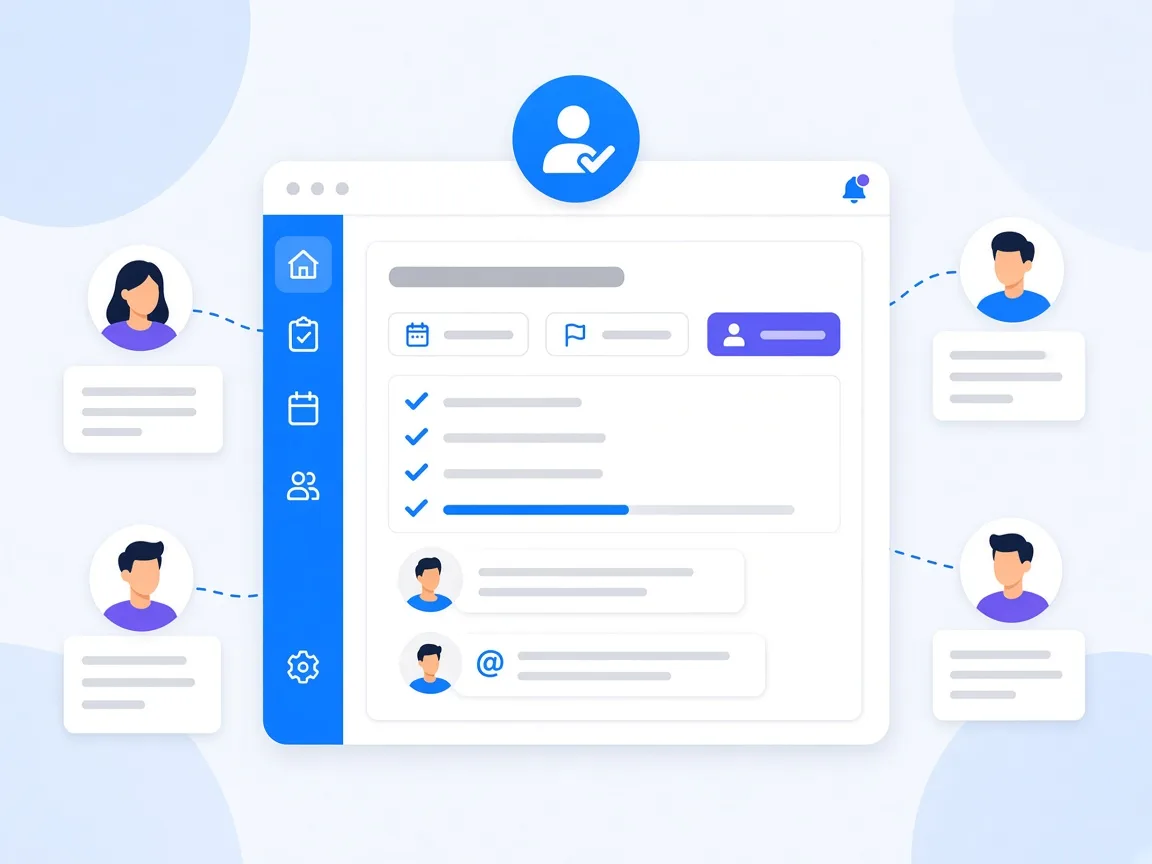
You assign tasks in your team most reliably when every task lives in one shared place and three things are clear: who owns it, when it is due and where discussions about it happen. In Microsoft Teams, that means: don't hand out tasks by email or chat, but in a board where assignees, due dates and comments sit right on the task. Notifications then make sure the right person is informed without anyone having to chase. This guide shows how that works day to day with timeghost Project Board.
Why tasks get lost in email and chat
Most tasks come up along the way: in a meeting, in an email, in a chat thread. That's exactly where they get lost again. Every team knows the consequences:
- Nobody knows exactly who took on a task. Two people work on it in parallel, or nobody does.
- Due dates sit in messages that nobody can find after three days.
- Follow-up questions run through different channels, and only the person currently working on it knows the latest status.
- When someone is on vacation or sick, nobody has an overview of what's open.
A shared board doesn't solve these problems with more discipline but with one fixed place: every task has a card, and everything that belongs to it is on that card.
Three ground rules for clear ownership
- One task, one owner: Several assignees are possible, but one person should be in charge. If several people contribute, split the task into subtasks.
- Every task has a date: A due date turns a good intention into a commitment. Project Board highlights overdue dates in red.
- Discussions belong on the task: Questions, decisions and files go into the task's comments and attachments, not into a separate email.
Step by step: assign tasks in Project Board
- Create a task: In the project via New task, on the board below a column via + New task, or on Home via the quick action.
- Set assignees: Assign one or more people from the project.
- Set dates: Enter a start date and a due date.
- Choose a priority: From Very low to Urgent, so everyone sees what comes first.
- Break it into subtasks: Split larger tasks into steps. Subtasks have their own assignees, dates and status. The card shows the progress, for example 2/5.
- Add context: Description, labels and attachments give the assignee everything they need.
- Mention people in a comment: Use @ to mention colleagues right on the task. They get notified.
The help center explains all task fields under Tasks, subtasks and comments.
Set up notifications the smart way
Notifications are the reason a board works, and at the same time the reason many tools get annoying. That's why Project Board distinguishes three groups:
- Required notifications about access, roles, licenses and security always arrive.
- Important notifications about direct assignments and mentions are on by default.
- Additional activity notifications about task, project and template activity are off by default.
For each type, you choose the channels In-app, Email and Microsoft Teams. A proven setup: assignments and mentions in Teams, everything else in the app only. If you want to stay up to date on a particular task without being assigned, click Follow. From the Basic plan, task reminders also remind you of upcoming dates. Learn how to set everything up under Home, search and notifications.
Keep the overview: Home and the task list
If you work in several projects, you need one place where everything comes together. On Home, My Focus shows up to seven tasks that need your attention right now, along with your projects, latest comments and recent activities. Under Tasks in the sidebar, you see the tasks from all your projects in one table, filterable by project, assignee, status, priority or overdue tasks.
For team leads, the board's column display by Assigned to is worth it. You see at a glance who has a lot and who has little on their plate, and you move tasks via drag and drop.
Who may do what? Set permissions in the project
Clear ownership also means deciding who may create and assign tasks in the first place. In the Project settings, you control for the Member role, among other things, whether members may create new tasks, edit tasks not assigned to them or reassign their tasks to others. For external contributors, the Restricted access role is a good fit: these people can only see and edit the tasks assigned to them. Details on all roles are in Projects, members and roles.
Common mistakes and how to avoid them
- Tasks without a date: Without a due date, every task slips back. Regularly sort the list by due date and filter for unassigned tasks.
- Everything is urgent: If every task has the highest priority, none does. Agree as a team what Urgent stands for.
- Duplicate channels: If you keep assigning tasks by email, you weaken the board. Point to the task in emails and chats, for example via Copy link.
- Too many notifications: Only turn on what you really need. Otherwise the important alerts get ignored, too.
- Re-creating recurring tasks every time: Set up routines like the weekly report once as a series. The guide to project templates and recurring tasks shows how.
Conclusion: one place for every task
Assigning tasks in a team works when ownership, due date and discussion sit in the same place. A board in Microsoft Teams replaces scattered emails and chat messages, and notifications replace chasing people. timeghost Project Board brings assignees, subtasks, comments with mentions and fine-grained notifications in Teams and by email. See the plans in the pricing overview, or try Project Board for free in your Microsoft Teams.
Sources and further reading
- Microsoft Learn: Microsoft Teams documentation
- Microsoft Learn: Manage apps in Microsoft Teams
- Microsoft Learn: Microsoft Entra ID
This article is for general information only. The content was created with the help of AI and reviewed by our editors. As of: 2026-10-16.
Frequently asked questions
Should a task have only one assignee?
Usually, yes. timeghost Project Board lets you assign several people, but one clear owner prevents everyone from relying on the others. If several people contribute, it is better to split the task into subtasks with their own assignees.
How am I notified about new tasks?
In timeghost Project Board, direct assignments and mentions reach you as notifications by default. For each type of notification, you choose the channels in-app, email and Microsoft Teams. Additional activity notifications are off by default and can be turned on when needed.
Can members pass tasks on to others?
You decide this per project. In the project settings of timeghost Project Board, you turn on or off, among other things, whether project members may reassign their tasks to others.
How do I see all my tasks across projects?
Under Tasks in the sidebar, timeghost Project Board shows the tasks from your projects in one shared table. On Home, My Focus shows up to seven tasks that need your attention right now.
About the Author

timeghost Team
Editorial Team
The timeghost team builds Project Board and writes about project and task management in Microsoft Teams.
Share article