Getting started
Home, search and notifications
This page shows you where the Project Board tells you what matters right now, how to track time, how to find tasks and projects quickly, and how to adjust notifications and personal settings.
Home
New in version 1.20.
Home is your start page after signing in. The switcher in the top right moves between the views:
- My work: your tasks, the dates of the week, mentions and notes
- My projects: the projects you lead, with progress, dates and what needs attention. The view appears once you lead a project.
- Portfolio: all projects of the workspace, for administrators and managers
- My times: your tracked time by day and project, once time tracking is on or you have entries, see Time tracking
Which views you see depends on your role, not on your plan. The line under the greeting sums up what is due or overdue today and who is waiting for you.
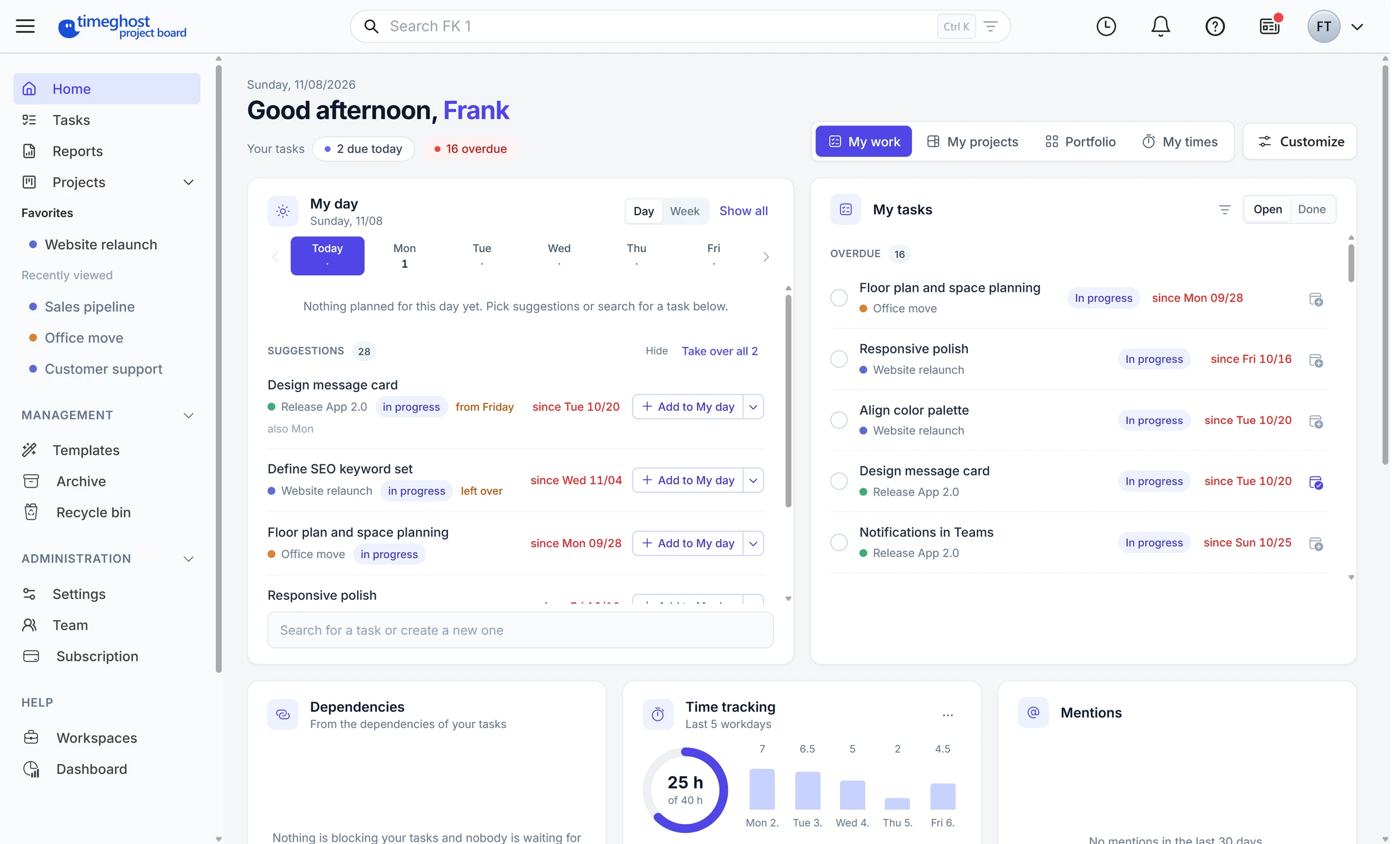
Widgets in My work
- My day: plan your day and the week. Place tasks on individual days without changing their due date.
- My tasks: all your open tasks by due date, with a project filter
- This week: planned and due tasks, and the milestones from Monday to Friday
- Dependencies: what you are waiting for and who is waiting for you. Remind sends the people working on the preceding task a short comment, once every 24 hours per task.
- Time tracking, Mentions, Notes (only visible to you) and Activity
In My projects and Portfolio, widgets show key figures, project cards, what needs attention, plan versus actual, a roadmap and team workload. You only ever see what you may see in the projects.
Customize Home
- Click Customize.
- Drag a widget by its handle to another place, change its width in its menu or remove it.
- Add widget lists the widgets the view does not show yet.
Each view has its own layout, and your arrangement is saved automatically. Reset to default restores the standard arrangement. Administrators save an arrangement as the default for the workspace. Everyone who has not customized the view starts with it.
Time tracking
New in version 1.20. Basic plan and up.
You track time where the work happens:
- On the task: start the timer or choose Track time….
- From anywhere: press T or click the clock in the header to open Track time. The dialog suggests tasks from your day plan, in progress, recently tracked or due, and shows the course of the day. Click a free gap to take it over.
- On Home: the Time tracking widget shows your hours this week against your weekly capacity and the last five workdays. You can start a timer there too.
Only one timer runs at a time; starting a new one stops the running timer. A running timer stays visible in the header. Durations can be entered as 1:30, 1.5 or 90m.
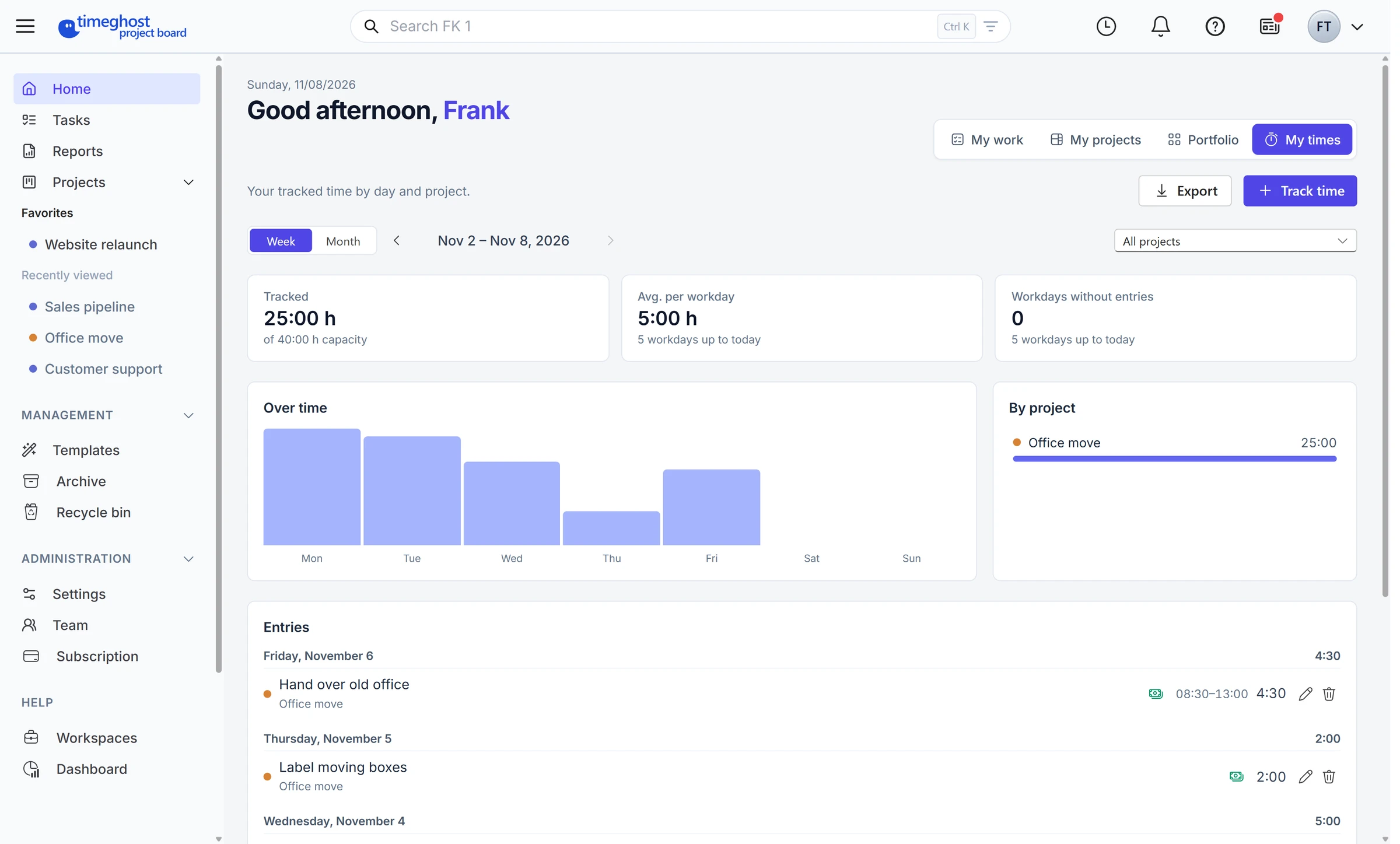
My times
Under Home > My times you choose week or month and go back with the arrows. The tiles show your total against your capacity, the average per workday and the workdays without entries. Below follow the chart, the split By project and the entries, grouped by day. The pencil changes day, time and note; the bin deletes an entry. Billable time is marked.
Export appears if you lead projects or are an administrator. Project leads export the times of all people on their projects as a CSV file; administrators can export every project. Nobody can change the entries of others.
Turn on time tracking
Administrators switch time tracking on or off in the workspace settings on the Time tracking tab, for new projects or for all existing ones. After that, whoever manages a project turns it on with Time tracking in the project menu. Switching it off keeps all entries, and they stay readable under My times. The weekly capacity is 40 hours by default; administrators change it per person under Team.
All tasks in one list
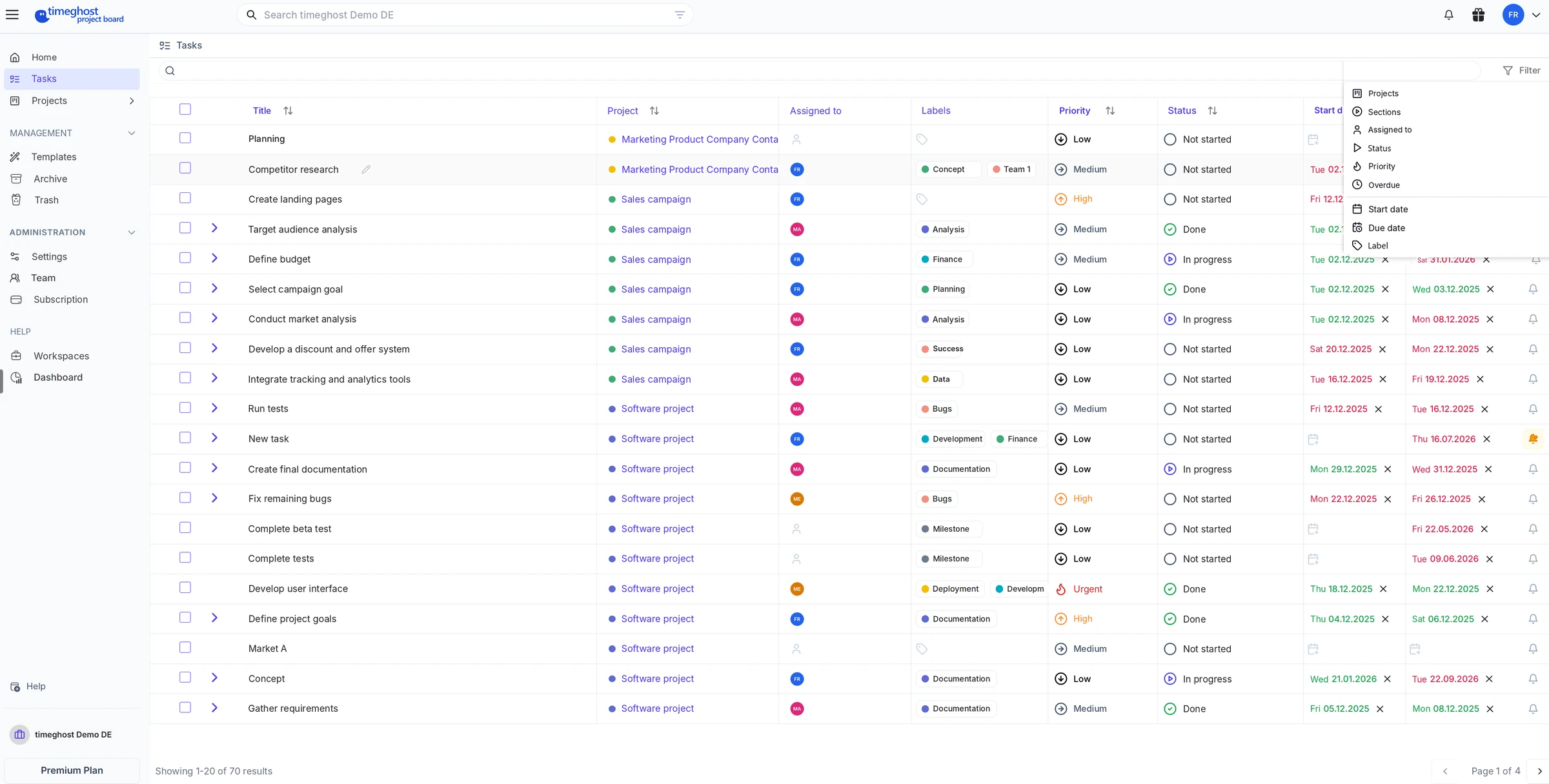
Tasks in the sidebar shows the tasks from your projects in one shared table. The columns show title, project, assignees, labels, priority, status, start date and due date.
- Click a column header to sort the list.
- Use the arrow in front of a task to expand its subtasks.
- Use Filter in the top right to narrow the list, for example by projects, sections, assignees, status, priority, overdue tasks, start date, due date or label.
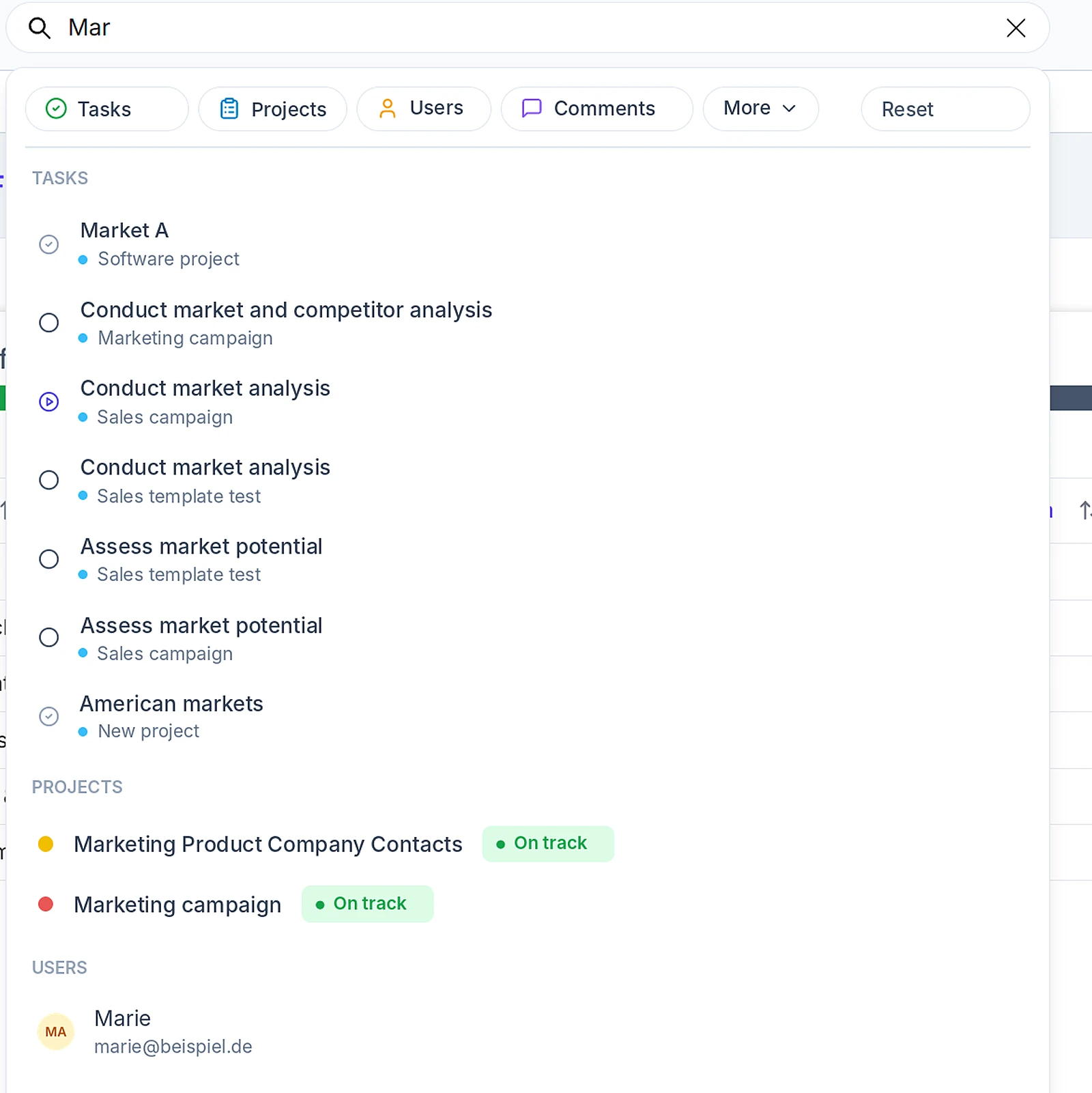
Search the workspace
The search field at the top searches your whole workspace. Results appear after a few letters, grouped into tasks (with their project), projects (with their project status) and users.
Use the filters above the results to narrow the search: Tasks, Projects, Users, Comments and, under More, labels and templates. Only administrators and managers find templates. Reset clears the filters.
Notifications
The bell in the top right shows the number of your unread notifications. Click it to open the list. From there you jump to the task in question or mark all notifications as read.
You stay informed about changes to a task or a whole project by following it. Learn more in Tasks, subtasks and comments.
Choose your notifications
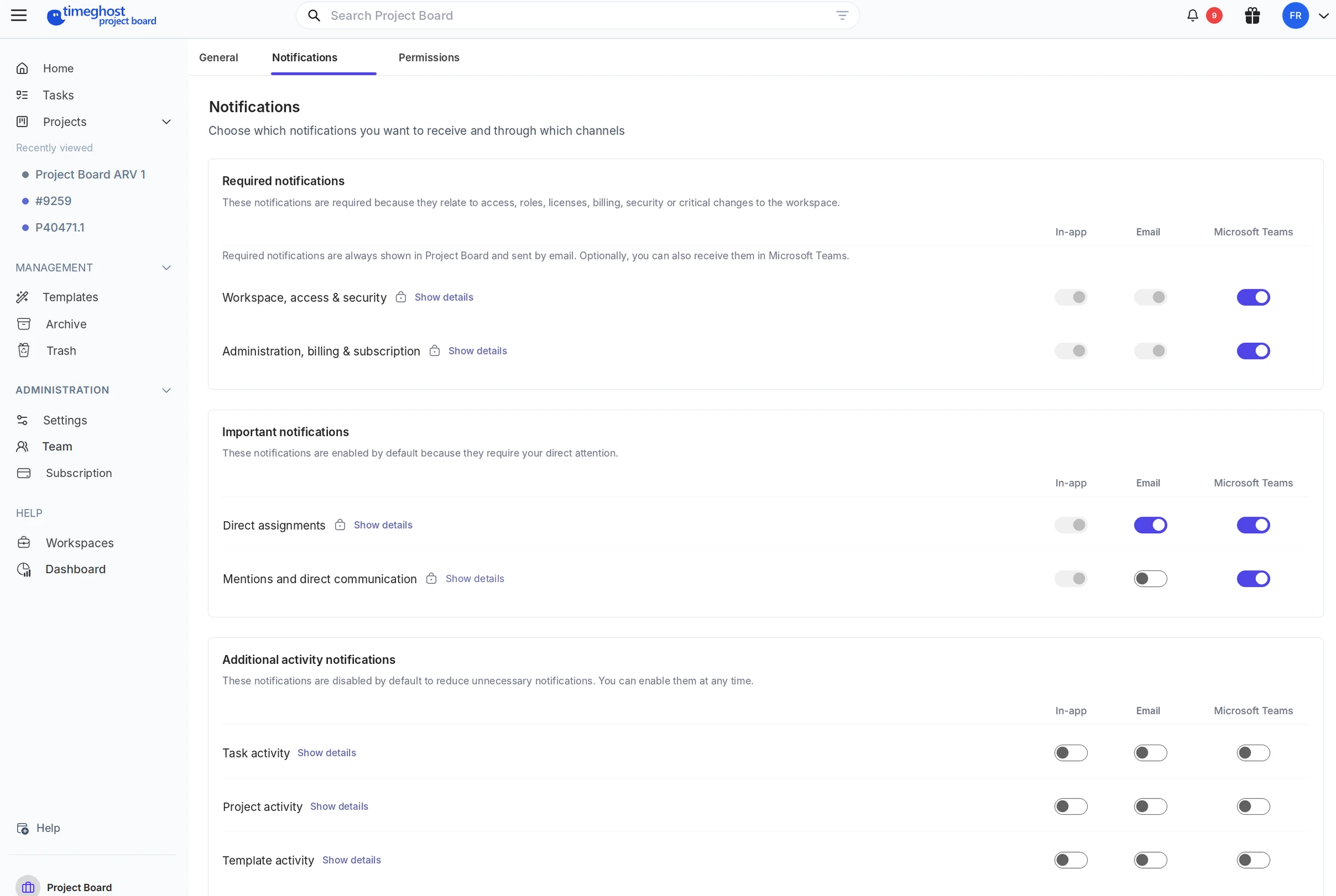
Open your settings via your profile picture in the top right and switch to the Notifications tab. For each type of notification you choose the channels In-app, Email and Microsoft Teams. Show details lists the events that belong to a row.
- Required notifications relate to access, roles, licenses, billing, security and critical changes to the workspace: Workspace, access & security and Administration, billing & subscription. They always appear in the app and are sent by email. You can add Microsoft Teams on top.
- Important notifications are enabled by default because they need your direct attention: Direct assignments and Mentions and direct communication. Mentions must stay active on at least one channel.
- Additional activity notifications are disabled by default to avoid unnecessary messages: Task activity, Project activity and Template activity. You can enable them at any time.
Personal settings
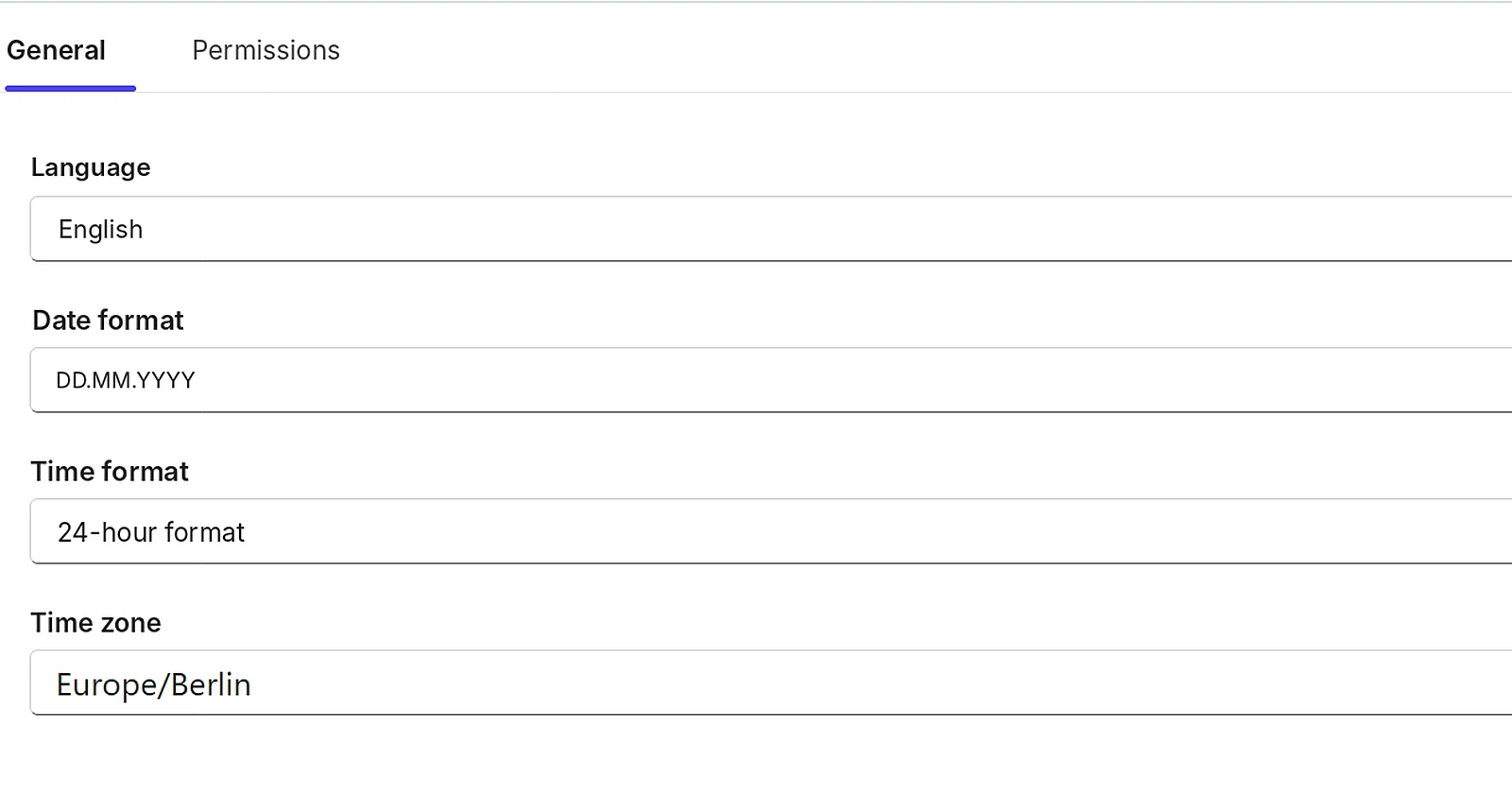
On the General tab you set how the Project Board looks for you:
- Language: English or German
- Date format, for example DD.MM.YYYY
- Time format: 24-hour or 12-hour (AM/PM)
- Time zone, for example Europe/Berlin
Under Danger zone you can delete your account. This also permanently removes your personal data. This step cannot be undone.
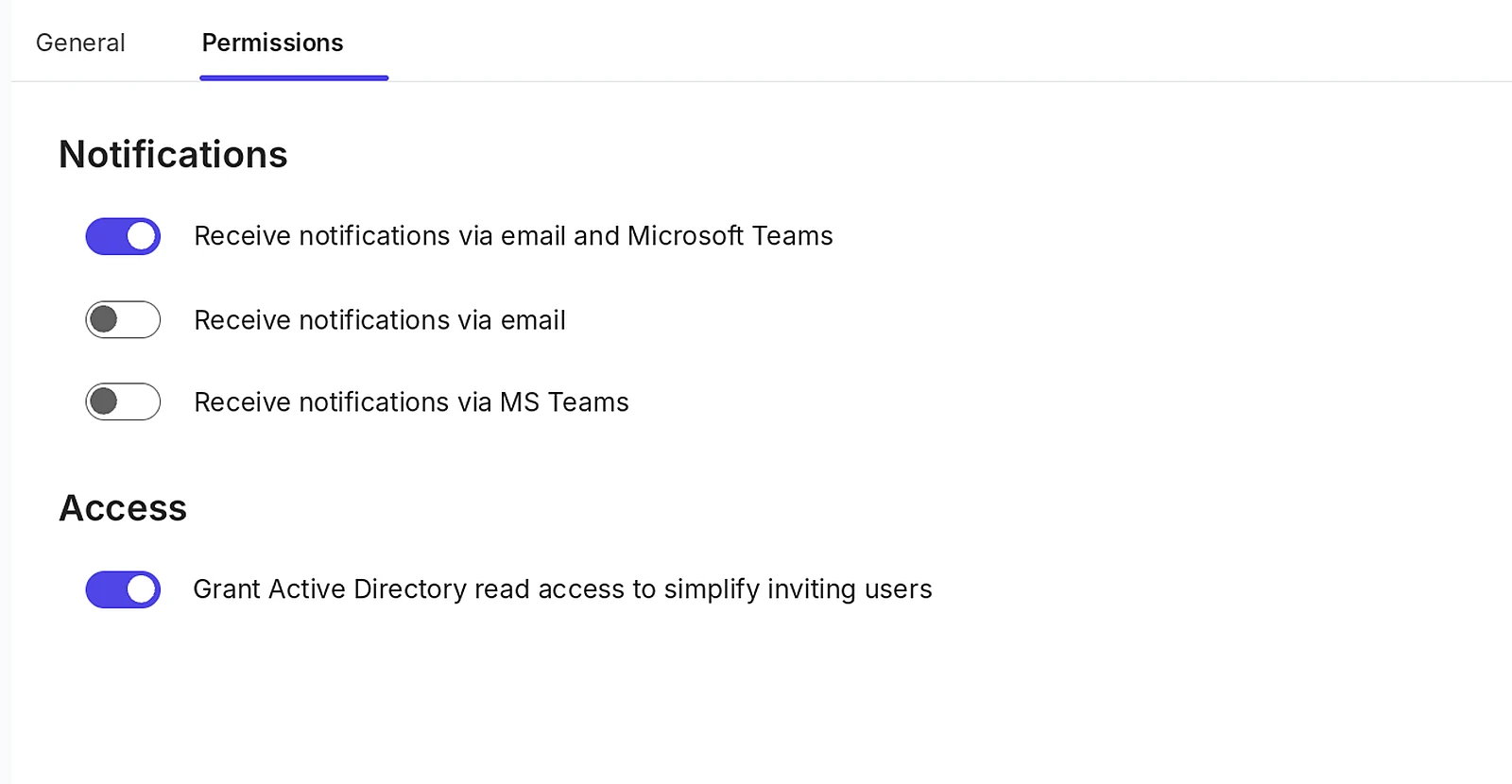
On the Permissions tab you can grant the Project Board read access to your Active Directory. This makes it easier to find colleagues when you invite them.
Next steps
- Projects, members and roles: set up projects and control access
- Tasks, subtasks and comments: everything a task can hold