Projects & tasks
Tasks, subtasks and comments in Project Board
Tasks are at the heart of every project. This page shows you how to create tasks, what you can set in a task and how you work on it together with your team.
Create a task
- In the project, via New task in the top left
- On the board, right below a column via + New task
- On Home, via the New Task quick action
Enter a title and the task is created right away. Click the task to open its details. If an active filter hides the new task, the Project Board lets you know.
The Free plan allows up to 50 tasks per project, with tasks and subtasks counting together. Beyond that, you can still view and edit existing tasks.
The fields of a task
| Field | Meaning |
|---|---|
| Title and description | The description is a text editor with formatting, and you can insert images. |
| Status | Not started, In progress or Done |
| Priority | Very low, Low, Medium, High or Urgent |
| Start date and due date | Overdue dates are shown in red. |
| Assignee | One or more people from the project |
| Labels | The project's colored tags, managed via Manage labels |
| Section | The column or group the task belongs to |
| Milestone | Links the task to one of the project's milestones |
The card on the board shows status, dates, assignees, labels and subtask progress, for example 0/3.
Subtasks
Split complex tasks into subtasks. Create them in the task details or directly on the board card via + New subtask. Subtasks have their own assignees, dates and status. Each task can have up to 100 subtasks.
Comments and mentions
You discuss each task with your team right below it:
- Type @ to mention a person. They get notified.
- Reply to comments directly or react with an emoji.
- You can edit and delete your own comments.
When several people are looking at the same task, the Project Board shows it.
Attachments
Attach files directly to the task. The Basic plan allows files up to 10 MB, the Premium plan up to 250 MB.
History
A task's Logs show who changed what and when. Activity logs are included from the Basic plan.
More actions
- Copy link: copies a direct link to the task, for example for a Teams chat.
- Follow: you get notified about changes to the task, even if you are not assigned.
- Duplicate: creates a copy. You choose what to carry over: assignees, labels, priority, start and end date, description, subtasks, attachments and restricted visibility. Status, comments and logs are not copied.
- Make recurring: turns the task into a series, see Templates and recurring tasks.
- Archive and Delete: you can restore archived tasks at any time, and deleted tasks stay in the trash for 30 days. Learn more in Import, archive and trash.
Every task also has a task ID that you can copy. It can be hidden per project or for the whole workspace.
Exclusive access to a task
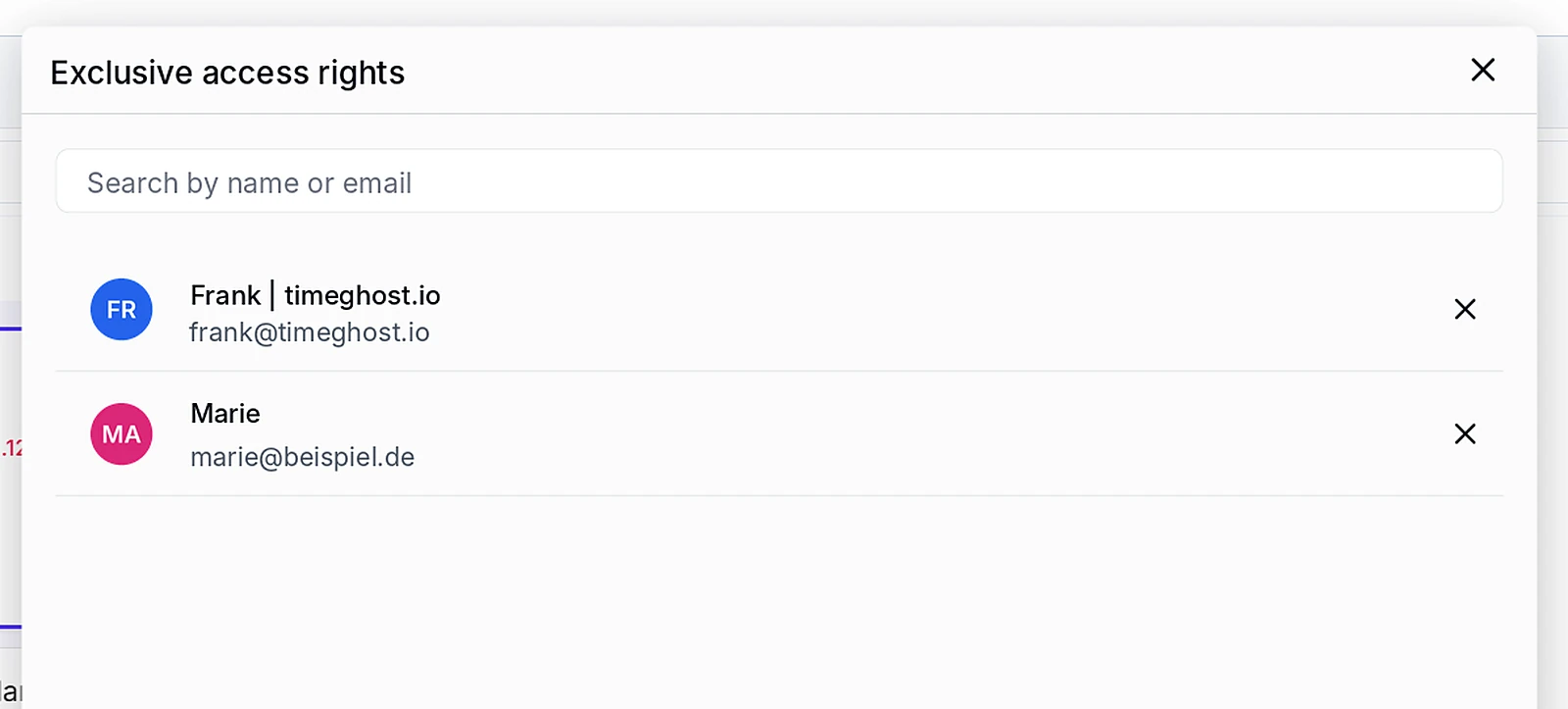
On the Premium plan you can restrict the visibility of individual tasks, for example for confidential topics. Turn on restricted visibility in the menu of the open task and pick the people who may see the task in the Exclusive access rights dialog. All other project members cannot see it. On the board, such tasks show a crossed-out eye.
Edit several tasks at once
Select several tasks in the list using the checkboxes. A bar shows how many tasks are selected. Via Edit you change status, priority, assignees or labels for all of them at once, remove yourself, or archive and delete them.
Next steps
- List, board and calendar: filter and group tasks and save views
- Templates and recurring tasks: map your routines