Projects & tasks
Import, archive and trash in Project Board
You can bring existing tasks over from other tools and clean up finished or outdated content without losing it for good. This page shows you the import wizard, the archive and the trash.
Import tasks
You start an import inside a project: open the Settings menu in the top right and choose Import cards. The tasks end up in this project.
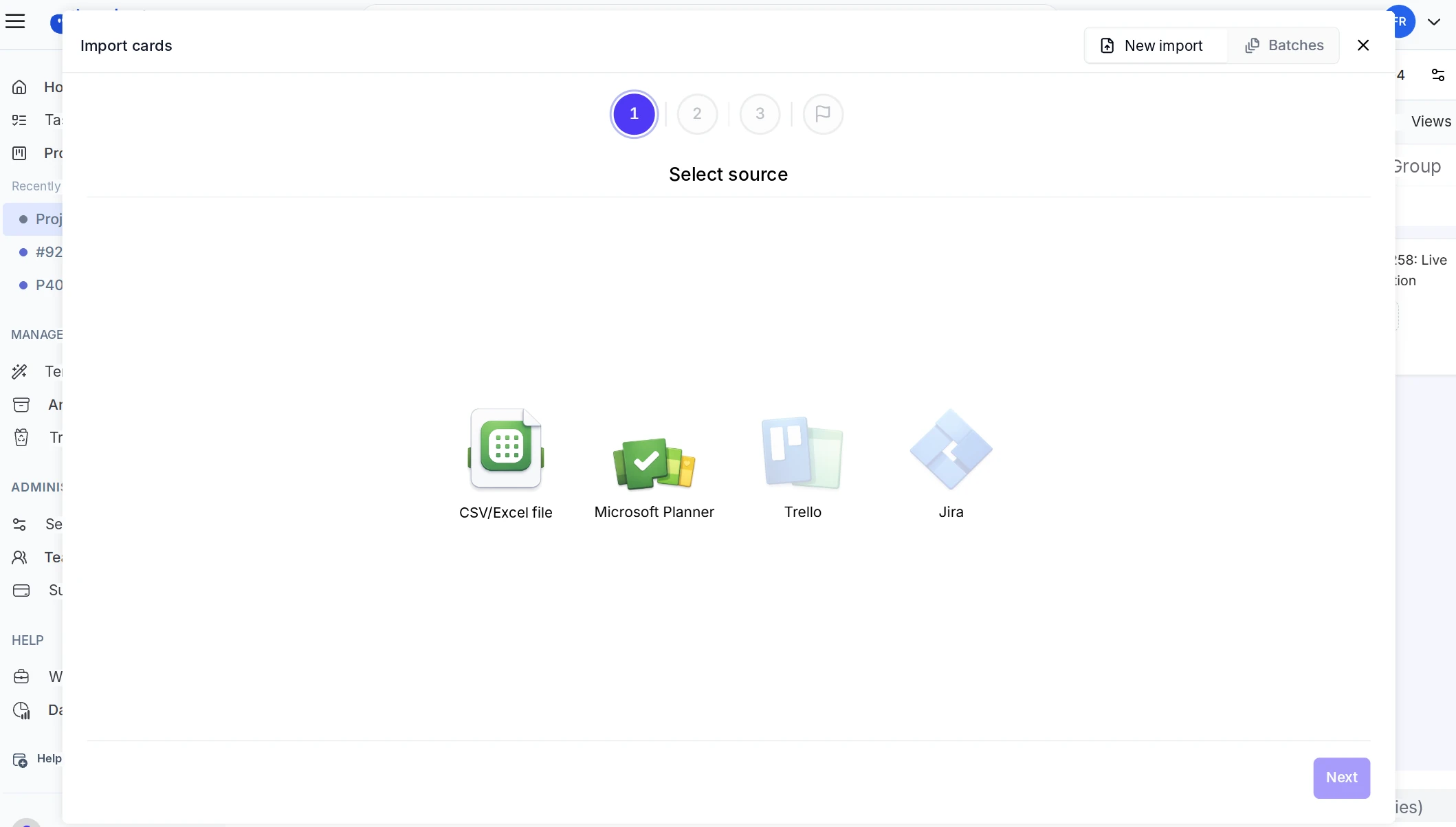
The wizard guides you through the import step by step. At the top you see which step you are on. Click a completed step to go back.
- Select source: choose CSV/Excel file or Microsoft Planner.
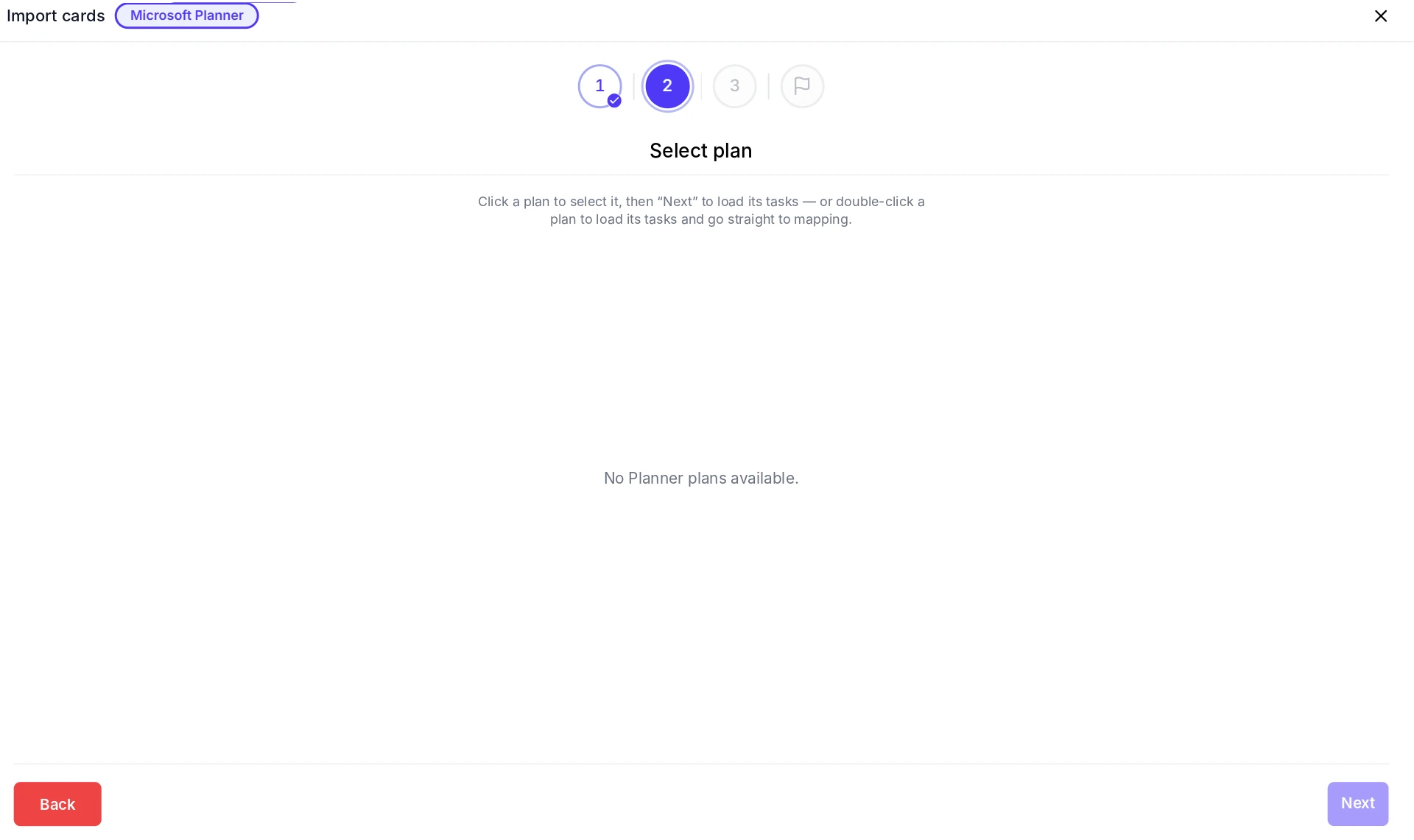
- Upload or connect data: drag your file into the window or click to choose a file. For Microsoft Planner, select the plan whose tasks you want to bring over. Double-clicking a plan takes you straight to mapping.
- Map columns: assign each column to a Project Board field, for example Title, Description, Assigned to, Status, Priority, Labels or Sections. Set columns you don't need to Do not import. A preview shows the data of each column.
- Map external values: match people, statuses, priorities and labels from the source to the right values in the Project Board.
- Review and start: if the wizard finds tasks that already exist, you decide: skip duplicates, update existing tasks or create new tasks. Then you start the import.
Import batches
Every import is saved as a batch. At the top of the import window you switch between New import and Batches. The list shows source, creator, date, number of tasks and status. If an import went wrong, deleting the batch removes all tasks of that import in one step. This cannot be undone.
Archive
Archived tasks disappear from the views but are kept. You can archive individual tasks, sections, tabs and whole projects.
- Project archive: via Archive in the project menu. Here you see the archived content of this project.
- Workspace archive: administrators and managers open Archive under Management in the sidebar. It shows archived Tasks, Sections, Tabs and Projects of the whole workspace.
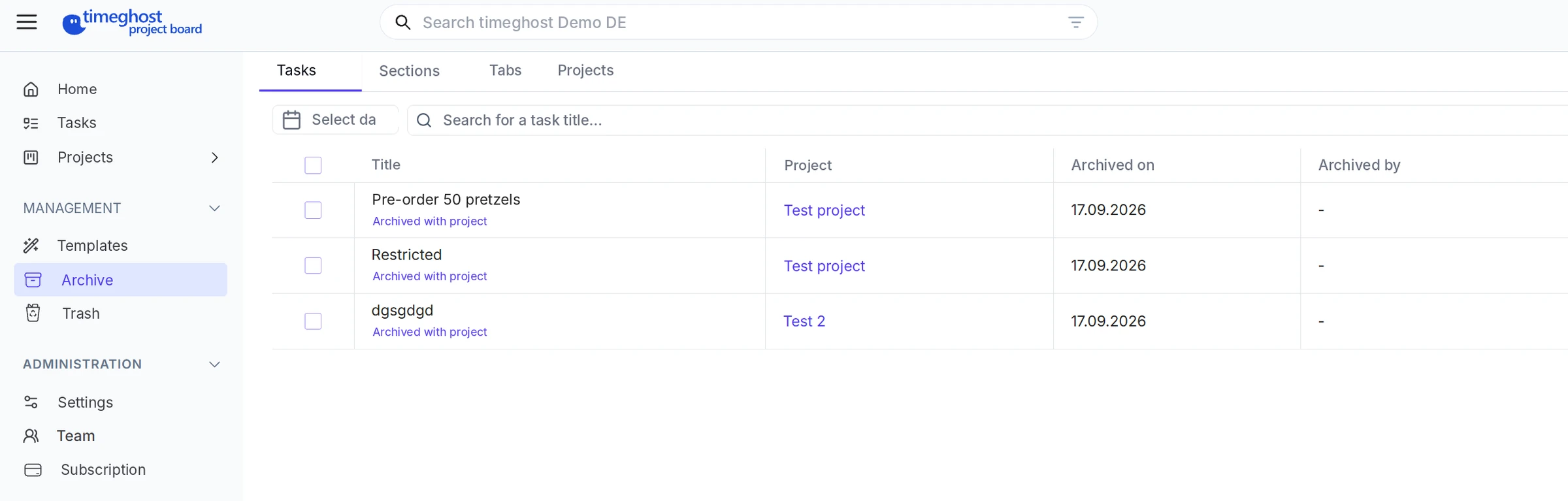
The list shows the project, the date and who archived the item. If a task was archived together with its project, this is noted below the title. Narrow the list down by date and title search. Select entries and click Unarchive to bring them back.
Trash
Deleted content stays in the trash for 30 days. During that time you can restore it. As with the archive, there is a trash per project in the project menu and one for the whole workspace under Management.
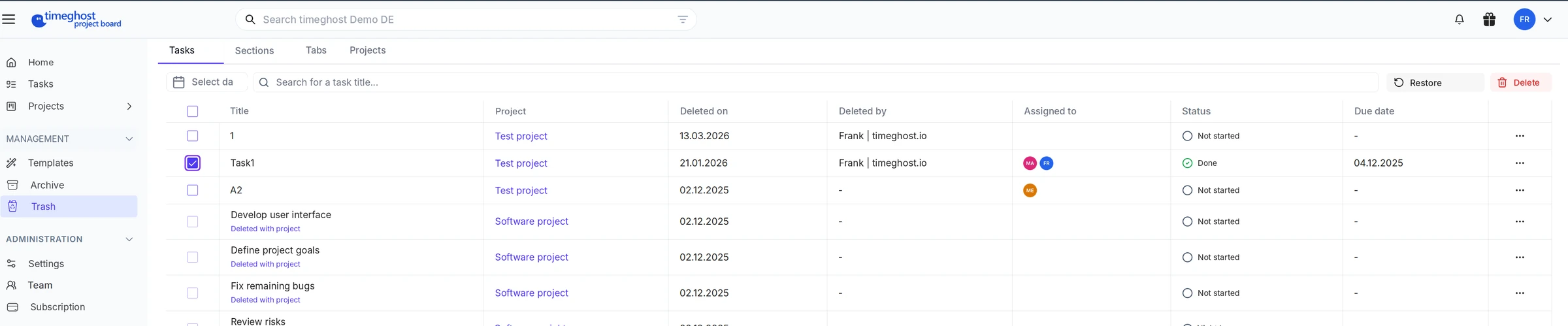
The list shows when and by whom an entry was deleted, plus assignees, status and due date. Select entries and choose:
- Restore: the entry returns to where it was.
- Delete: the entry is removed permanently. This cannot be undone.
Archive and trash are included from the Basic plan.
Next steps
- Tasks, subtasks and comments: archive and delete tasks
- Security and operations: roles and permissions in the workspace