Projects & tasks
Documents: project storage and files on tasks
New in version 1.20.
Documents shows all files of a project in one place. You open it in the top right of the project, next to Views. The number on the button shows how many documents the project has.
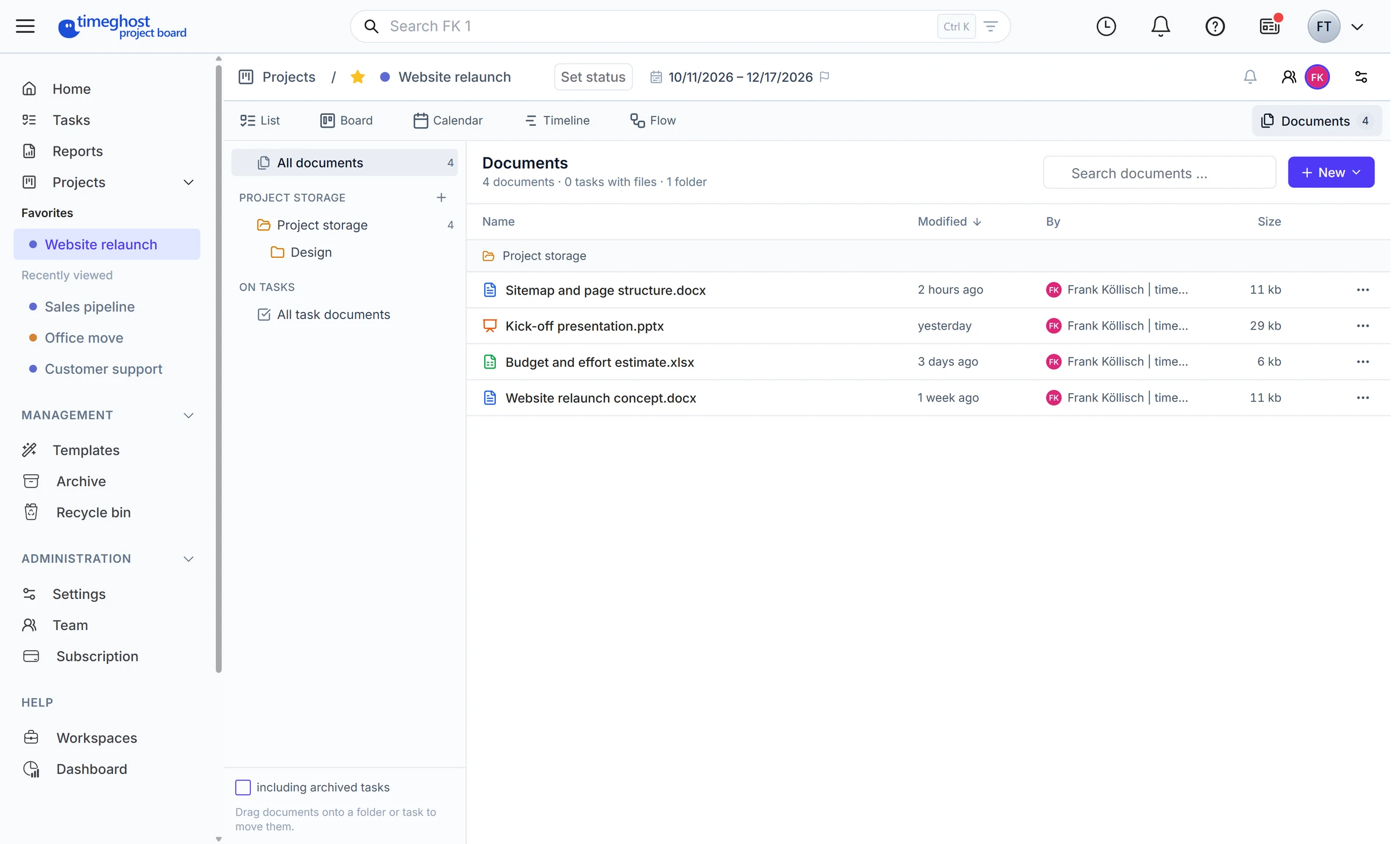
Project storage and files on tasks
On the left you choose which documents you see:
- All documents: everything in the project
- Project storage: the project's file, separate from individual tasks. Use the plus to add a folder, and a folder's menu to add a subfolder.
- On tasks: files attached to tasks, grouped by section
Drag a document onto a folder or a task to move it. Including archived tasks also shows files on archived tasks.
Upload and create documents
Use New to upload files or create a blank Word, Excel or PowerPoint document. The document lands wherever is selected on the left: in project storage, in a folder or on a task.
How large a file may be depends on your plan:
- Free: up to 5 MB per file, up to 100 MB per workspace in total
- Basic: up to 10 MB per file
- Premium: up to 250 MB per file
Preview, versions and check-out
Click a document to open the preview. The menu with the three dots holds the other actions:
- New version: if you upload a file with the same name, you decide whether it becomes a new version. The last 20 versions are kept and can be restored.
- Check out: locks a document for 8 hours and downloads it. Others see who is editing it.
- Check in: uploads your copy as a new version and removes the lock. Project administrators can remove locks set by others.
Observers and guests can view documents but not change them.
Deleted documents
Deleted documents stay in the recycle bin under Documents for 30 days. You can restore them from the Basic plan; learn more about the recycle bin in Import, archive and recycle bin.