Security & operations
Security, administration and on-premise for Project Board
This page is mainly for administrators. It shows how you set up and manage your workspace, where the Project Board runs, how sign-in works and what options there are for running it in your own infrastructure.
Workspace settings
Administrators open Settings under Administration in the sidebar. There are three tabs: General, Permissions and API.
General
Here you change the workspace Title and decide under Display how new projects start:
- Default view: for example Board, list or calendar
- Default column display: Sections if you want to create your own board columns, or a field such as status
- Default grouping: for example No grouping
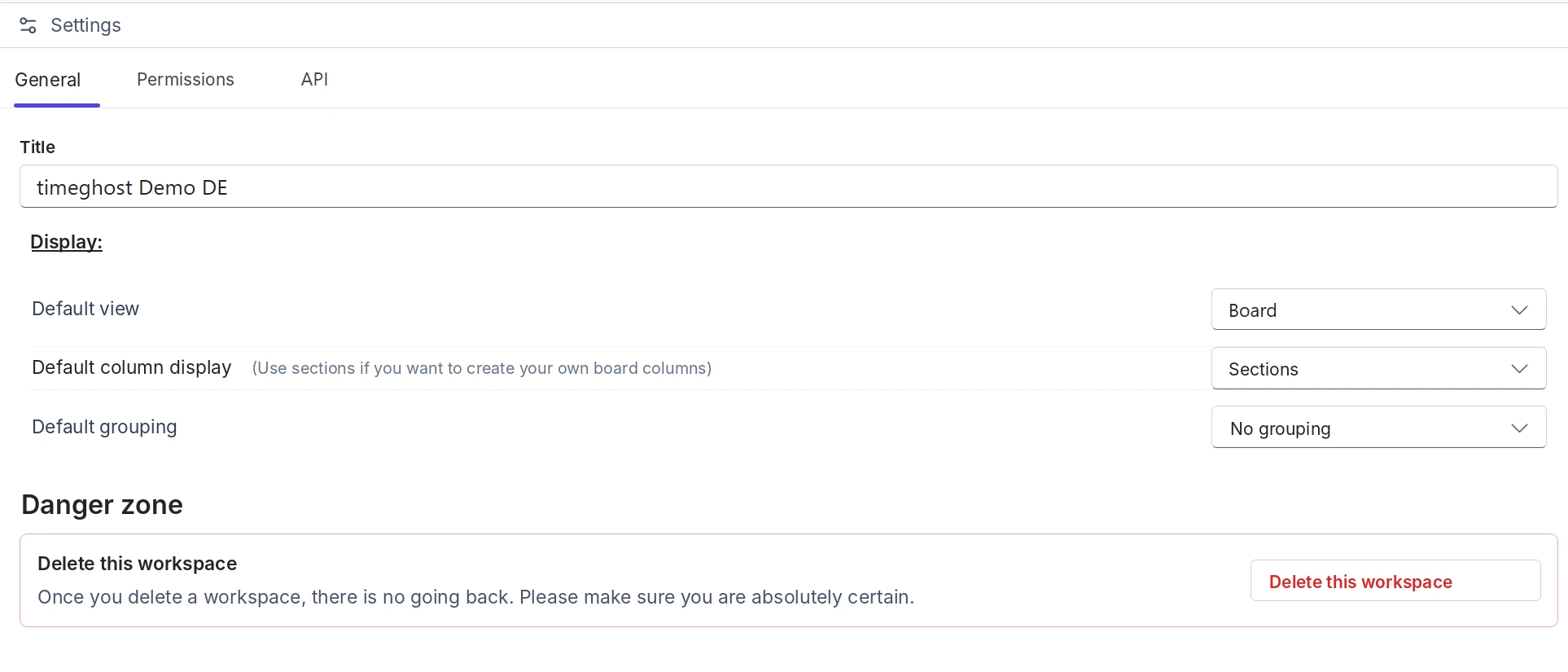
In the Danger zone you delete the workspace via Delete this workspace. This cannot be undone. As long as a subscription is active, you cannot delete the workspace. Cancel it first.
Permissions
In the Permissions tab you decide whether workspace members may create new projects. You also set the defaults for project member rights: creating tasks, opening and editing tasks not assigned to them, and reassigning their tasks to others. Each project can adjust these rights in its project settings, see Projects and collaboration.
The workspace settings also let you hide task IDs for all projects.
API
On the Premium plan you connect other applications to your workspace via the Project Board API.
- Open the API tab.
- Click Generate API key and enter a description so you can identify the key later.
- Copy the key right away and store it safely. It is shown in full only right after it is created. After that it is masked.
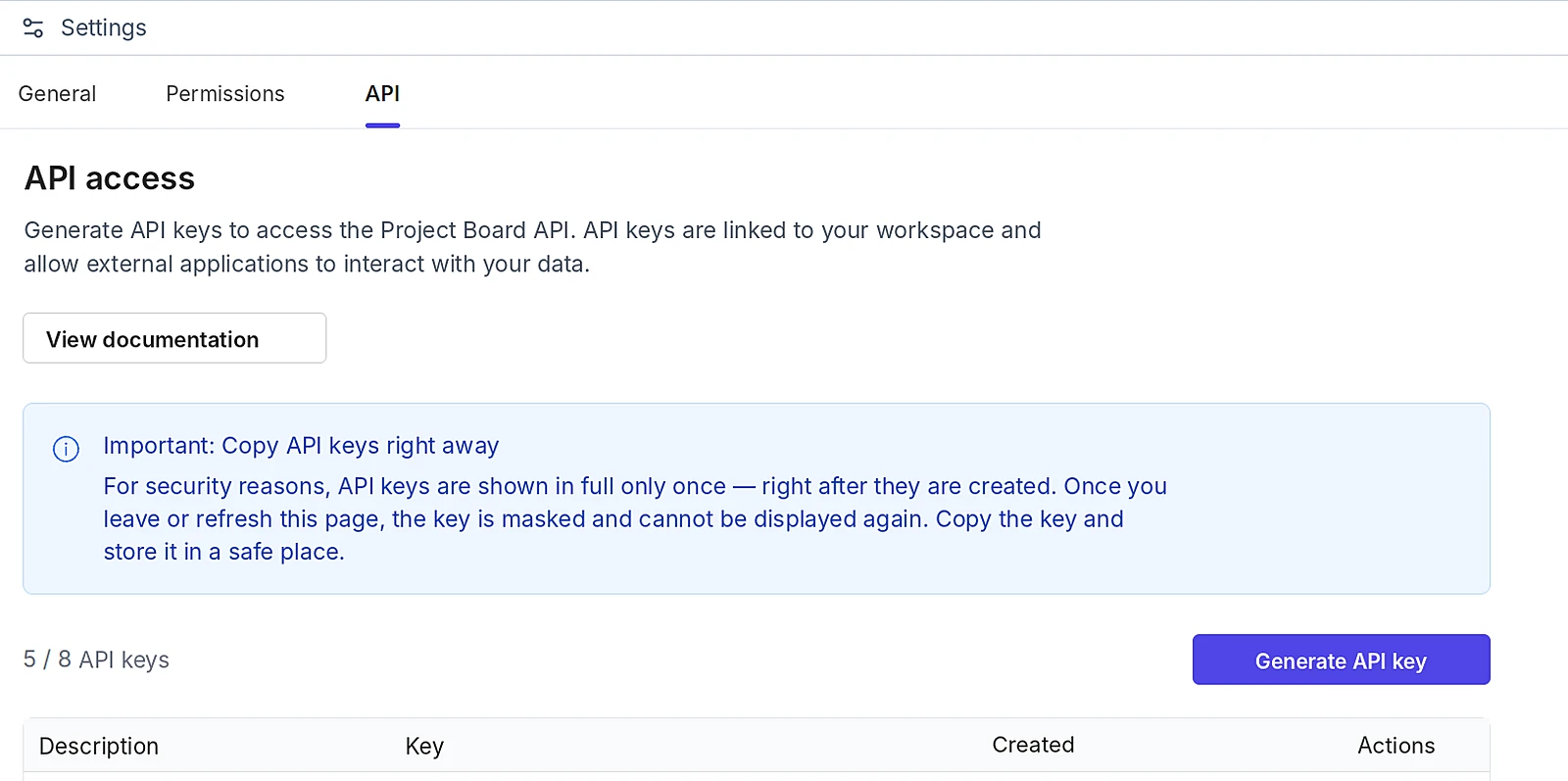
Each workspace can have up to 8 API keys, and the count is shown above the list. The list shows the description, the masked key and the creation date. Use Actions to remove keys you no longer need. View documentation opens the API documentation.
Team, roles and licenses
Under Administration and Team you see all users of the workspace with their role and license. Every person has a workspace role:
| Role | What it can do |
|---|---|
| Administrator | Full access: manages settings, team, subscription and projects |
| Manager | Full access to all projects and templates, can create and restore them |
| Member | Can join projects and receive a project role there |
You assign project roles such as Owner or Observer in each project, see Projects and collaboration.
On a paid plan every person needs a license. Use the checkbox in the list to assign or withdraw a license. Without a license, the account is restricted and can no longer access the workspace. As long as the subscription is active, at least one person must be licensed. You manage the number of licenses under Subscription.
Hosting on Microsoft Azure
The cloud service runs on Microsoft Azure in the Germany West Central region (Frankfurt). Your project data is stored in Frankfurt and protected against unauthorized access. The privacy policy lists which service providers also process data outside the EU.
ISO 27001 and GDPR
The Project Board is ISO 27001-konform: information security follows the requirements of ISO 27001. Personal data is processed in line with the GDPR. Details are in the privacy policy.
Sign-in with Microsoft Entra ID
Users sign in via single sign-on with their organization's Microsoft 365 account (Microsoft Entra ID), no extra password needed.
Encryption and backups
All communication runs over HTTPS. Backups are created at least twice a day on redundant servers.
Permissions and traceability
- Activity logs for projects and tasks are included from the Basic plan. They show who changed what and when.
- Advanced permissions and role management and tasks with exclusive access are part of the Premium plan. How to restrict access to a task is described in Tasks, subtasks and comments.
On-premise operation
For companies with their own IT infrastructure, the Project Board is available as an on-premise solution, with full control over your data and individual adaptation to your environment. System requirements, setup and terms depend on your environment and are clarified in a personal conversation.
Learn more on the on-premise page. To send a request, contact our sales team.