Projects & tasks
Reports: status reports as PDF and Word
New in version 1.20. Basic plan and up, scheduled delivery on Premium.
Reports are status reports and timesheets from your projects. You design a report once from blocks such as KPIs, status light, timeline and task table, and then generate it for the projects and periods you need, as a PDF or Word document. You find reports in the sidebar under Reports.
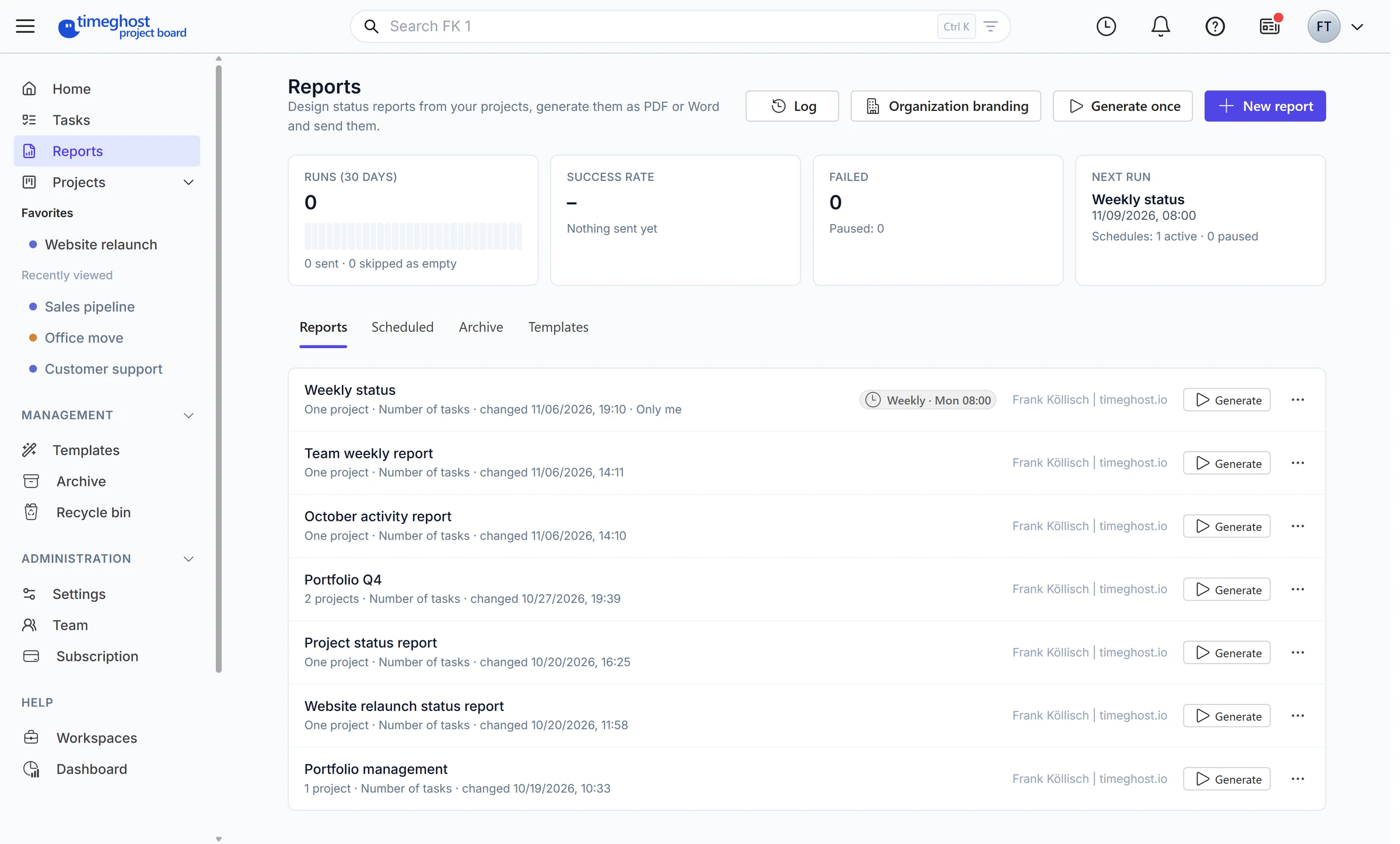
Overview
The list shows the reports you may see, with scope, last change and scheduled delivery. At the top you see the runs of the last 30 days, the success rate, failed deliveries and the next run.
Generate opens a report with its parameters, such as period and project. The figures come live from the projects. Everyone only sees the projects and tasks they have access to. If you lack access to part of a report, a notice in the report says so.
Create a report
- Click New report.
- Choose a template: Project status report for one project, Portfolio report for several projects or Empty. Your own templates are listed below.
- Set the name, the report language and the scope. The scope is one project, a fixed selection of several projects or a saved filter that is evaluated again each time the report opens.
- Drag blocks onto the page and arrange them.
To save your own template, open More actions in the report and choose Save as template. It keeps blocks, calculation method, format and branding, but not the scope.
Generate once
Generate once creates a report from a template that does not appear in the list and only you can see, for example for a quick status update. Its issues are in the archive. Keep as report adds it to the list. Without a saved issue it is deleted after 24 hours.
Scheduled, archive and templates
- Scheduled: all schedules with the next date or the reason why a delivery is paused. Automatic delivery by email, for example every Monday, comes with the Premium plan.
- Archive: the issues of all reports, including one-off reports, as PDF or Word. You see your own issues. Whoever may edit a report also sees the issues of other editors and of scheduled delivery.
- Templates: the included templates, among them client timesheet and personal timesheet, and your own
For administrators
- Organization branding: organization name, logos, accent color, footer text and time zone for all reports in the workspace, unless a report sets its own branding. The time zone determines the as-of date and the time of scheduled deliveries.
- Log: when issues were created, Word files downloaded, reports sent and deliveries scheduled or paused. You can open the PDF of each issue there.
Next steps
- Home, search and notifications: Home, time tracking and My times
- Documents: keep files on the project and on the task